# Twilio Alerts Integration
Twilio Alarms is a monitoring feature built into the Twilio Console that lets you set thresholds on error and warning activity across your account. When the number of errors in a given time window exceeds your threshold, Twilio fires a notification — including a webhook request to any URL you configure.
This integration receives those webhook notifications and creates alerts in ITOC360 automatically. Since Twilio Alarms notify you when error volume spikes rather than on individual events, each alarm maps to a single incident in ITOC360.
### How It Works
Twilio monitors error and warning activity across your account. When the number of occurrences of a configured error code (or any error) exceeds your defined threshold within the selected time window, Twilio fires the alarm and sends a POST request to your ITOC360 webhook URL. ITOC360 opens an incident for that alarm and keeps it open until the same alarm fires again or you resolve it manually.
### Prerequisites
* A Twilio account
* Your ITOC360 webhook URL, generated when you create the integration
### In ITOC360
Go to **Integrations**, click **Add Integration**, and select **Twilio Alarms** from the list. Copy the webhook URL that appears — you'll need it in the next step.
### In Twilio
#### Step 1 — Open Manage Alarms
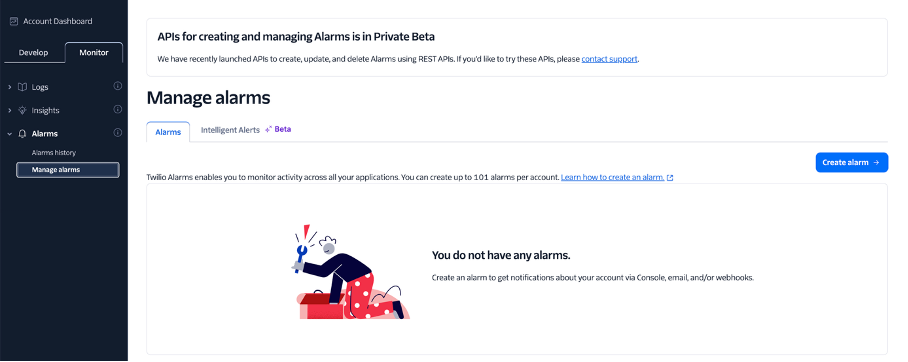
In the Twilio Console, click the **Monitor** tab at the top of the left sidebar. Under **Alarms**, click **Manage alarms**.
If you haven't created any alarms yet, the page will show an empty state. Click **Create alarm** in the top right corner.\
#### Step 2 — Configure the Alarm
The alarm creation form has four steps. Fill them in as follows:
**Step 1 — Select a target metric** Choose the error code you want to monitor. Select **Any Warning or Error** to catch all issues, or pick a specific error code from the dropdown if you want to monitor a particular failure type.
**Step 2 — Define activation threshold** Set the **Alarm threshold** to the minimum number of errors that should trigger the alarm. A threshold of `1` means the alarm fires as soon as a single matching error occurs. Choose a **Time period** that matches how quickly you want to be notified — **Every 5 minutes** gives the fastest response.
**Step 3 — Choose a notification method** Check **Enable webhook** and paste your ITOC360 webhook URL into the field that appears. You can leave email notifications unchecked.
**Step 4 — Name it** Give the alarm a descriptive name like `ITOC360` so it's easy to identify later.
Click **Save** when done.
### Alert Behavior
Every time this alarm fires, ITOC360 opens a new alert. The priority of the alert is determined by the time window configured for the alarm — shorter windows indicate more urgent conditions.
| Time period | Priority |
| ---------------- | -------- |
| Every 5 minutes | CRITICAL |
| Every 15 minutes | HIGH |
| Every 1 hour | MEDIUM |
| Every 12 hours | LOW |
| Every 24 hours | LOW |
### Notes
* Twilio Alarms do not send a recovery payload when conditions return to normal. Incidents opened by this integration will remain open until you resolve them manually in ITOC360, or until your team acknowledges and closes them.
* You can create multiple alarms for different error codes and point them all at the same ITOC360 webhook URL. Each alarm will open a separate incident based on its unique alarm SID.
* The alarm fires when the threshold is **met or exceeded** within the time window, not just on the first occurrence.