# SolarWinds Integration
[SolarWinds Orion](https://www.solarwinds.com/solutions/orion) is a network and infrastructure monitoring platform that tracks the health, performance, and availability of nodes, interfaces, applications, and volumes across your environment. When something goes wrong — a node goes down, a threshold is breached — Orion fires an alert.
### How It Works
SolarWinds uses an alert action called **Send a GET or POST Request to a Web Server** to push alert data outbound. You'll configure two of these actions per alert:
* **Trigger Action** — fires when the alert condition is met, opening an incident
* **Reset Action** — fires when the condition clears, resolving the incident
The `event_type` field in the payload (`TRIGGER` or `RESET`) tells ITOC360 what to do.
### In SolarWinds Orion
#### Step 1 — Open Alert Manager
Log in to SolarWinds, then navigate to **Alerts & Activity → Alerts**. On the top right, click **Manage Alerts**.
You'll land on the active alerts page, which lists all currently firing alerts in your environment.
#### Step 2 — Create a New Alert
Click **Add New Alert**. On the **Alert Properties** screen, fill in the following:
* **Name of alert definition** — give it something descriptive, like `itoc360 - Node Down`
* **Severity of alert** — set this to match the criticality you want (e.g. Critical)
* Leave **Enabled** toggled on
* Everything else can stay at its default
Click **Next** when you're done.
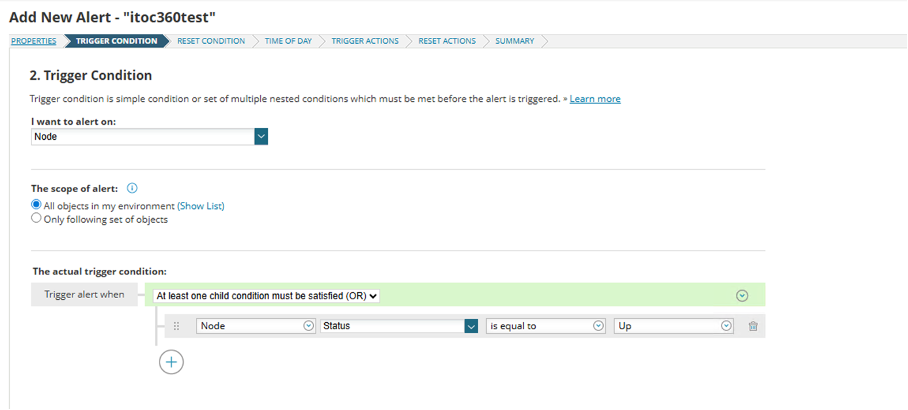
#### Step 3 — Set the Trigger Condition
On the **Trigger Condition** tab, define what should cause the alert to fire.
For a basic node monitoring setup:
* **I want to alert on:** Node
* **The scope of alert:** All objects in my environment
* **Trigger alert when:** Node → Status → is equal to → Up (then negate, or use "is not equal to Up")
You can adjust this to match whatever you're actually monitoring — the integration works with any alert type in SolarWinds.
#### Step 4 — Set the Reset Condition
On the **Reset Condition** tab, select **Reset this alert when trigger condition is no longer true**. This is the recommended option and it's what makes auto-resolution work — when the node comes back up, SolarWinds will fire the reset action automatically.
Click **Next**.
#### Step 5 — Time of Day
On the **Time of Day** tab, leave it set to **Alert is always enabled, no schedule needed** unless you specifically want to suppress alerts during maintenance windows.
Click **Next**.
#### Step 6 — Add the Trigger Action
On the **Trigger Actions** tab, click **Add Action**. A dialog will pop up listing all available action types.
Scroll down and select **Send a GET or POST Request to a Web Server**, then click **Configure Action**.
In the configuration form, fill in the following:
| Field | Value |
| -------------- | ------------------------ |
| Name of action | `itoc360` |
| URL | Your itoc360 webhook URL |
| Method | Use HTTP/S POST |
| ContentType | `application/json` |
| Authentication | None |
Paste the following into the **Body to POST** field — keep it as a single line with no line breaks:
```
{"AlertID":"${N=Alerting;M=AlertID}","AlertName":"${N=Alerting;M=AlertName}","AlertStatus":"Triggered","AlertDescription":"${N=Alerting;M=AlertDescription}","Severity":"${N=Alerting;M=Severity}","TriggerTime":"${N=Alerting;M=AlertTriggerTime;F=DateTime}","ObjectType":"${N=Alerting;M=ObjectType}","ObjectName":"${N=SwisEntity;M=Caption}","NodeName":"${N=SwisEntity;M=Caption}","NodeIP":"${N=SwisEntity;M=IP_Address}","AlertDetailsUrl":"${N=Alerting;M=AlertDetailsUrl}","AcknowledgeUrl":"${N=Alerting;M=AcknowledgeLink}"}
```
Click **Save Changes**, then **Add Action**.
#### Step 7 — Add the Reset Action
Navigate to the **Reset Actions** tab and repeat the same process — click **Add Action**, select **Send a GET or POST Request to a Web Server**, and click **Configure Action**.
Use the exact same URL, method, and content type. The only change is in the body: swap `TRIGGER` for `RESET`.
```
{"AlertID":"${N=Alerting;M=AlertID}","AlertName":"${N=Alerting;M=AlertName}","AlertStatus":"Reset","AlertDescription":"${N=Alerting;M=AlertDescription}","Severity":"${N=Alerting;M=Severity}","TriggerTime":"${N=Alerting;M=AlertTriggerTime;F=DateTime}","ObjectType":"${N=Alerting;M=ObjectType}","ObjectName":"${N=SwisEntity;M=Caption}","NodeName":"${N=SwisEntity;M=Caption}","NodeIP":"${N=SwisEntity;M=IP_Address}","AlertDetailsUrl":"${N=Alerting;M=AlertDetailsUrl}","AcknowledgeUrl":"${N=Alerting;M=AcknowledgeLink}"}
```
Click **Save Changes**, then **Add Action**.
#### Step 8 — Save the Alert
Click through to the **Summary** page, review everything looks right, and hit **Submit**. The alert is now active.
### Payload Reference
| Field | SolarWinds Variable | Description |
| ------------------- | --------------------------------------------- | ------------------------------------------------ |
| `event_type` | Static | `TRIGGER` opens an incident, `RESET` resolves it |
| `alert_id` | `${N=Alerting;M=AlertID}` | ID of the alert definition |
| `alert_active_id` | `${N=Alerting;M=AlertActiveID}` | ID of the active alert instance |
| `alert_object_id` | `${N=Alerting;M=AlertObjectID}` | ID of the object that triggered the alert |
| `alert_name` | `${N=Alerting;M=AlertName}` | Alert name as defined in SolarWinds |
| `alert_description` | `${N=Alerting;M=AlertDescription}` | Alert description text |
| `severity` | `${N=Alerting;M=Severity}` | Critical, High, Warning, or Informational |
| `trigger_time` | `${N=Alerting;M=AlertTriggerTime;F=DateTime}` | Timestamp of when the alert fired |
| `object_type` | `${N=Alerting;M=ObjectType}` | Node, Interface, Volume, Application, etc. |
| `entity_name` | `${N=SwisEntity;M=Caption}` | Display name of the affected entity |
| `entity_ip` | `${N=SwisEntity;M=IP_Address}` | IP address of the node |
| `node_id` | `${N=SwisEntity;M=NodeID}` | Internal SolarWinds Node ID |
| `details_url` | `${N=Alerting;M=AlertDetailsUrl}` | Direct link to the alert in SolarWinds |
### Priority Mapping
| SolarWinds Severity | itoc360 Priority |
| ------------------- | ---------------- |
| Critical | critical |
| High | high |
| Warning | warning |
| Medium | warning |
| Informational | low |
| Low | low |
### Troubleshooting
**No incidents are being created**
Double-check that the webhook URL is pasted correctly in the action configuration with no trailing spaces. Make sure the ContentType is set to `application/json` and the method is POST. Use the Simulate button to send a test request and check the itoc360 logs for any errors.
**Incidents aren't resolving automatically**
Make sure the Reset Action is configured on the **Reset Actions** tab, not Trigger Actions, and that `"event_type":"RESET"` is in the payload body. Also confirm the Reset Condition is set to fire when the trigger condition is no longer true.
**Some fields come through empty**
Fields like `entity_ip` can be empty for non-node alerts (e.g. volume or application alerts), since those object types don't always have an IP address. This is expected and won't affect how incidents are created or resolved.