# Site24x7 Integration
### Overview
Site24x7 provides cloud-based performance monitoring for servers, networks, and websites.
To connect Site24x7 with our platform, we use a Custom Webhook. Instead of using Site24x7's default payload, which contains unnecessary logs, we configure it to send a custom JSON template. This ensures the incoming data perfectly matches our Event ➔ Alert ➔ Incident architecture. When our platform receives the payload, it uses the `Status` and `Severity` fields to map the priority and determine whether to trigger an alert or resolve an existing one.
### Provider Configuration & Mapping
When Site24x7 sends a webhook, we extract the exact status using JSONPath.
Priority Mapping Config:
JSON
```
{
"priority": {
"field": "$.Severity",
"options": [
{ "value": "DOWN", "label": "Down" },
{ "value": "CRITICAL", "label": "Critical" },
{ "value": "TROUBLE", "label": "Trouble" }
],
"mapping": {
"DOWN": "CRITICAL",
"CRITICAL": "HIGH",
"TROUBLE": "MEDIUM"
}
}
}
```
Event Type Mapping:
* `$.Status == "DOWN"` | `"CRITICAL"` | `"TROUBLE"` ➔ `EventType: ALERT`
* `$.Status == "UP"` ➔ `EventType: RESOLVE`
Correlation (Fingerprint): We use `$.IncidentNumber` (which pulls from Site24x7's `$MONITOR_ID`). This is the unique key that links an active alert to its recovery event.
***
### Setup Instructions
#### Step 1: Get Your Webhook URL
1. Log in to your alert management platform.
2. Go to Sources → Add Source.
3. Select Site24x7 as your provider.
4. Save the configuration and copy the generated Webhook URL.
#### Step 2: Add the Webhook in Site24x7
1. Log in to your Site24x7 account.
2. On the left sidebar, scroll down and click Admin.
3. Click on Third-Party Integrations.
4. From the list of available integrations, select Webhooks.
#### Step 3: Configure the Payload
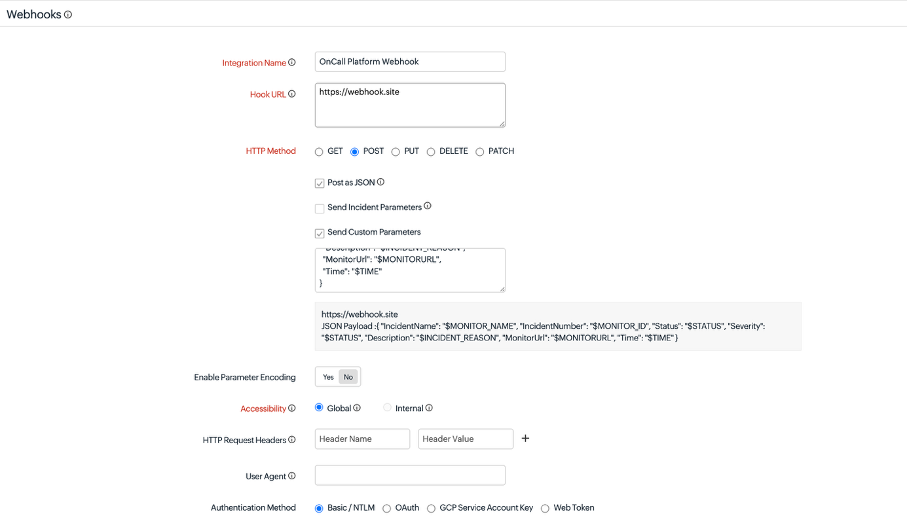
Fill out the integration form to match our platform's requirements.
1. Integration Name: Type a recognizable name (e.g., `OnCall Platform Webhook`).
2. Hook URL: Paste the Webhook URL you copied in Step 1.
3. HTTP Method: Leave this as `POST`.
4. Post as JSON: Check this box.
5. Send Incident Parameters: Uncheck this box to disable the default payload.
6. Send Custom Parameters: Check this box. A text area will appear. Paste the following JSON structure exactly as shown:
JSON
```
{
"IncidentName": "$MONITOR_NAME",
"IncidentNumber": "$MONITOR_ID",
"Status": "$STATUS",
"Severity": "$STATUS",
"Description": "$INCIDENT_REASON",
"MonitorUrl": "$MONITORURL",
"Time": "$TIME"
}
```
#### Step 4: Select Triggers and Save
Scroll down to the bottom of the form to define when Site24x7 should send alerts.
1. Under Trigger Alerts for Monitor Status Change, make sure you check Down, Trouble, and Critical. *(Note: Site24x7 automatically sends recovery/UP signals, so you don't need to check a box for it here).*
2. Click Save and Test to finish the setup and send a sample payload to your platform.
### Testing the Integration
When you click Save and Test, Site24x7 immediately fires a mock payload.
1. Check your platform's incoming logs or alerts dashboard.
2. You should see a new event with `Status: "DOWN"` and a description like "Service Unavailable".
3. Confirm that the platform successfully parsed this event and created an Incident with a `CRITICAL` priority.