# Sentry Integration
Sentry is an error tracking and performance monitoring platform that helps development teams catch and fix issues in real time. With this integration, you can forward Sentry issue events directly into ITOC360 as alerts — so when something breaks in production, your on-call team gets notified immediately through the usual escalation flow.
The integration works through Sentry's Internal Integration mechanism. Every time an issue is created, resolved, assigned, or changes state, Sentry sends a webhook to ITOC360. From there, ITOC360 handles the rest.
### Setting Up the Integration in Sentry
#### Step 1 — Create a New Internal Integration
Log into your Sentry account and head over to **Settings → Developer Settings → Custom Integrations**. You'll see a **Create New Integration** button in the top right corner. Click it and select **Internal Integration** when prompted.
#### Step 2 — Configure the Integration
Fill in the integration details on the form that appears:
* **Name** — Give it a recognizable name like ITOC360
* **Webhook URL** — Paste your ITOC360 webhook URL here. You can find this in ITOC360 under Sources, after creating a Sentry source. The URL follows this format:
```
https:///functions/v1/events?token=
```
Leave everything else as is for now.
#### Step 3 — Enable Issue Webhooks
Scroll down on the same page. Under the **Permissions** section, find **Issue & Event** and set it to **Read** — this is required before you can enable webhooks.
Then, under the **Webhooks** section, check the **issue** box. This tells Sentry to send a webhook to ITOC360 whenever an issue is created, resolved, assigned, archived, or unresolved.
Once everything looks good, hit **Save Changes**.
### Setting Up an Alert Rule in Sentry
The integration alone isn't enough — you also need to tell Sentry when to actually fire the webhook. This is done through Alert Rules.
#### Step 4 — Go to Alerts
In Sentry, navigate to **Issues → Configure → Alerts** from the left sidebar.
#### Step 5 — Create a New Alert Rule
Click the **Create Alert** button in the top right corner of the Alerts page.
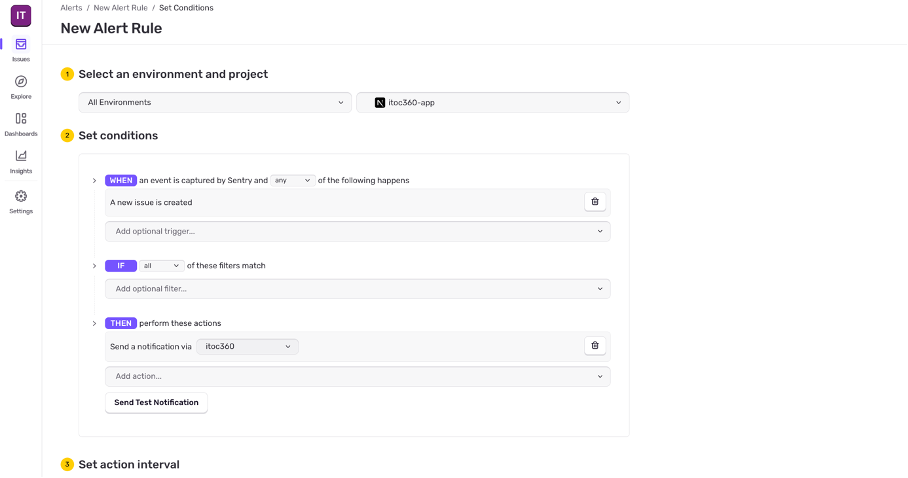
#### Step 6 — Configure the Alert Rule
On the New Alert Rule page:
1. **Select an environment and project** — Choose the Sentry project you want to monitor
2. **Set conditions** — Under the WHEN block, select **"A new issue is created"** as the trigger
3. **Set actions** — Under the THEN block, click **Add action** and select **"Send a notification via itoc360"**
Once you've set this up, you can click **Send Test Notification** to verify the connection is working. If everything is configured correctly, you'll see a new alert appear in ITOC360 shortly after.
Save the rule when you're done.
### How It Works
Once the integration is active, Sentry will send a webhook to itoc360 for every issue event. itoc360 maps the incoming payload to a standardized alert format:
| Sentry Action | itoc360 Event |
| ------------- | ------------- |
| `created` | ALERT |
| `assigned` | ALERT |
| `unresolved` | ALERT |
| `archived` | ALERT |
| `resolved` | RESOLVE |
Priority is determined from the `priority` field in the Sentry payload:
| Sentry Priority | itoc360 Priority |
| --------------- | ---------------- |
| `low` | LOW |
| `medium` | MEDIUM |
| `high` | HIGH |
| `critical` | CRITICAL |
***
### Notes
* Issue webhooks cover state changes on existing issues. If you want ITOC360 to catch issues the moment they're created, make sure your alert rule includes the **"A new issue is created"** condition.
* The same issue will always map to the same alert in ITOC360 — so if it gets triggered, resolved, and triggered again, each cycle creates a new incident correctly without duplication.
* You can create multiple alert rules pointing to ITOC360 for different projects or conditions.