# Postman Monitors Integration
Postman is an API development and testing platform that lets you run collections of HTTP requests automatically on a schedule using monitors. When a monitor run finishes, Postman can send the results directly to any webhook endpoint — including ITOC360.
This integration uses Postman's native **Webhooks** integration to forward monitor run results to ITOC360. No scripting or custom code required — you connect once and every subsequent monitor run is automatically reported.
### How It Works
After each monitor run, Postman sends a JSON payload containing run metrics such as the number of failed tests, errors, and total latency to your ITOC360 webhook URL. ITOC360 evaluates those metrics and opens an incident when tests fail, then resolves it automatically when the monitor passes again.
### Prerequisites
* A Postman account with at least one monitor configured
* Your ITOC360 webhook URL, generated when you create the integration
### In ITOC360
Go to **Integrations**, click **Add Integration**, and select **Postman Monitors** from the list. Copy the webhook URL that appears — you'll need it in the next steps.
### In Postman
#### Step 1 — Open Integrations
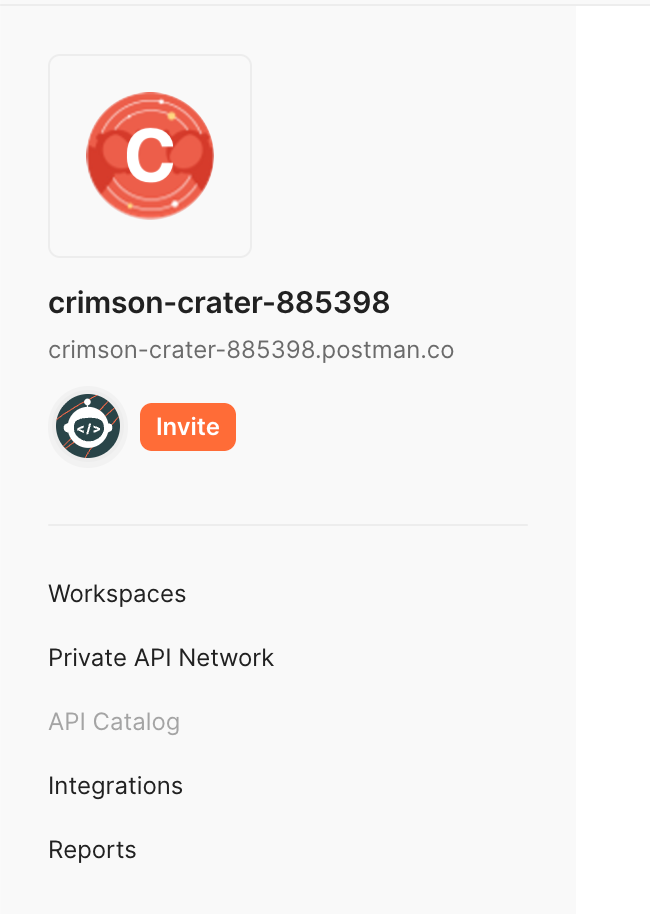
Click your workspace name or avatar in the top left, then select **Integrations** from the left sidebar menu.
On the Integrations page, search for **web** in the search bar and click the **Webhooks** tile.
#### Step 2 — Add a Webhook Integration
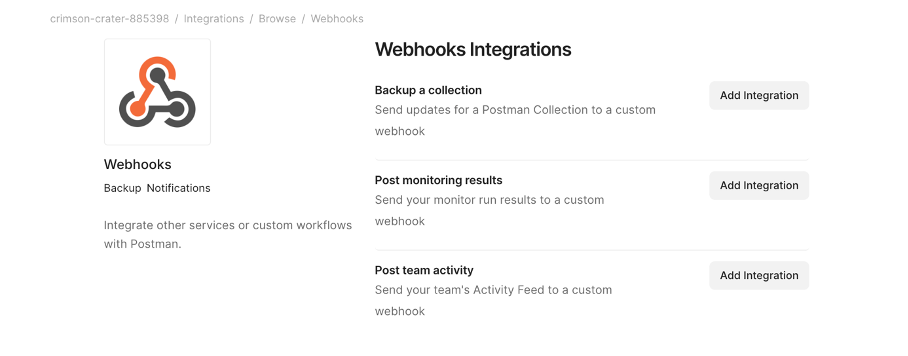
The Webhooks page lists three types of integrations. Click **Add Integration** next to **Post monitoring results**.
Fill in the form as follows:
* **Nickname** — give it a recognizable name, such as `ITOC360`
* **Choose workspace** — select the workspace where your monitor lives
* **Choose Monitor** — select the monitor whose results you want to forward
* **Webhook URL** — paste your ITOC360 webhook URL here
* **Configure when monitor runs must be notified** — select **Notify for all completed monitor runs** so that both failures and recoveries are sent to ITOC360
Click **Add Integration** to save.
### Alert Behavior
| Condition | itoc360 Action |
| -------------------------------------- | --------------------- |
| `failedTests > 0` or `errors > 0` | Opens an incident |
| `failedTests === 0` and `errors === 0` | Resolves the incident |
ITOC360 uses the monitor's unique identifier to match open and resolved events together, so the same monitor's failures and recoveries are always linked to the same incident.
### Notes
* Make sure to select **Notify for all completed monitor runs** rather than the default option. Without this, ITOC360 will not receive recovery payloads and incidents will never resolve automatically.
* If you have multiple monitors, add a separate webhook integration for each one and point them all at the same ITOC360 webhook URL.