# Pingdom Integration
Pingdom is an uptime and performance monitoring tool that checks whether your websites and services are accessible. When a check changes state — going down or coming back up — Pingdom can send an HTTP POST request to a webhook URL of your choice. This page explains how to connect Pingdom to ITOC360 so that downtime alerts are routed directly into your on-call workflows.
### How It Works
Pingdom monitors your endpoints at regular intervals from multiple probe locations around the world. When it detects that a site has gone down (or recovered), it fires a webhook notification to any integration you have configured on that check. No scripting or custom payload mapping is required — you simply provide ITOC360's webhook URL, and Pingdom handles the rest.
### Prerequisites
* A Pingdom account (Starter plan or higher)
* An ITOC360 account with at least one active on-call schedule
### Step 1 — Add ITOC360 as a Webhook Integration
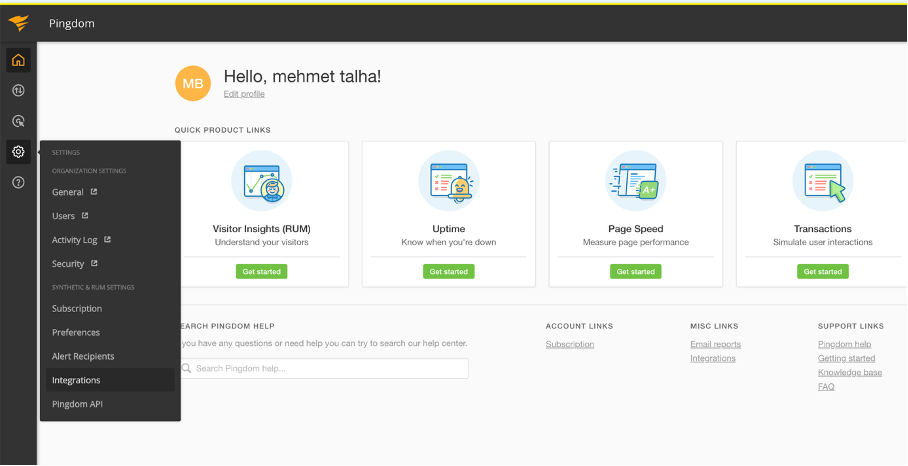
Open your Pingdom dashboard and navigate to **Settings → Integrations** from the left sidebar.
Click **Add Integration**, select **Webhook** as the integration type, then fill in the form:
| Field | Value |
| ------ | --------------------------------- |
| Name | ITOC360 (or any label you prefer) |
| URL | Your ITOC360 webhook endpoint |
| Active | ✅ Checked |
Click **Save integration** to confirm.
### Step 2 — Connect the Integration to Your Checks
The webhook you just created must be linked to each uptime check you want to monitor. Open a check (or create a new one) via **Synthetics → Uptime → Add new**.
Scroll down to the **Alerting Settings** section and configure check importance and who should be notified.
Continue scrolling to the **Connect Integrations** section at the bottom of the form. Your newly created webhook will appear in the list — make sure it is selected.
Click **Create check** (or **Save** if editing an existing check).
***
### Step 3 — Verify the Connection
To confirm that alerts are reaching ITOC360, trigger a test alert from the Pingdom integrations page or briefly pause and resume the check. Within a few minutes, a new alert should appear in your ITOC360 alert feed.
A successful Pingdom webhook payload looks like this:
```json
{
"version": 1,
"check_id": 14401378,
"check_name": "My Website",
"check_type": "HTTP",
"check_params": {
"hostname": "mywebsite.com",
"full_url": "http://mywebsite.com/",
"port": 80
},
"importance_level": "HIGH",
"previous_state": "UP",
"current_state": "DOWN",
"state_changed_utc_time": "2026-03-23T12:27:50",
"description": "Non-recoverable failure in name resolution",
"first_probe": {},
"second_probe": {}
}
```
***
### Priority Mapping
ITOC360 maps Pingdom's `importance_level` field to alert priorities as follows:
| Pingdom Importance | itoc360 Priority |
| ------------------ | ---------------- |
| LOW | LOW |
| MEDIUM | MEDIUM |
| HIGH | HIGH |
You can adjust the importance level of any check under **Alerting Settings → Check importance** when creating or editing a check.
### Troubleshooting
**Alerts are not appearing in** ITOC360 Make sure the ITOC360 webhook integration is actually selected under **Connect Integrations** on the specific check. Adding an integration to Pingdom does not automatically attach it to existing checks — you need to link it manually per check.
**Receiving email alerts but no webhook calls** This is the same issue as above. Email notifications and webhook integrations are configured separately in Pingdom. Check that the webhook is connected to the check in addition to your email notification settings.
**Duplicate alerts for the same incident** If multiple checks monitor the same host, each one will fire its own webhook on a state change. Consider consolidating overlapping checks or using tags to distinguish them in ITOC360.