# Jenkins Integration
Jenkins is an open-source automation server widely used for building, testing, and deploying software. Through its Notification plugin, Jenkins can send build lifecycle events to external systems — including itoc360 — whenever a job changes state.
### Prerequisites
* A running Jenkins instance
* The **Notification Plugin** installed (available in the Jenkins plugin marketplace)
* An ITOC360 source token for Jenkins
***
### Creating a Pipeline Job
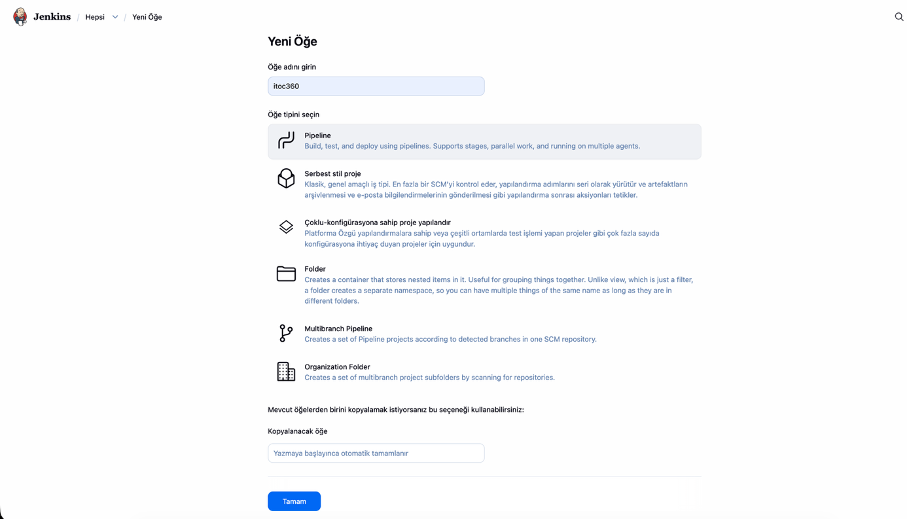
Start by navigating to the Jenkins dashboard and clicking **New Item** in the left sidebar. Enter a name for your job — something like `itoc360` works fine — and select **Pipeline** as the item type.
Once you've selected Pipeline, click **OK** to proceed to the configuration page.
### Configuring the Notification Endpoint
On the job configuration page, scroll down to the **Job Notifications** section. Click **Add Endpoint** to reveal the endpoint settings. Fill in the fields as follows:
* **Format:** JSON
* **Protocol:** HTTP
* **Event:** All Events
* **URL Source:** Plain Text
* **URL:** Your ITOC360 webhook URL with the token appended as a query parameter
The URL should look like this:
```
https:///functions/v1/integrations?token=
```
Leave Timeout at the default (30000 ms) and Retries at 0 unless you have a specific reason to change them.
***
### Adding the Pipeline Script
Scroll down to the **Pipeline** section. Make sure the Definition is set to **Pipeline script**, then paste the following into the Script field:
```groovy
pipeline {
agent any
stages {
stage('Test') {
steps {
echo 'Build active'
}
}
}
}
```
This is a minimal pipeline that runs a single stage. In a real setup, this would contain your actual build and test steps. The important part for ITOC360 is the Notification endpoint you configured above — it fires regardless of what the pipeline does.
Click **Save** when done.
### How It Works
Once the job is saved, Jenkins will send a notification to your ITOC360 endpoint at each phase of the build lifecycle: **QUEUED**, **STARTED**, **COMPLETED**, and **FINALIZED**. ITOC360 uses the `build.phase` and `build.status` fields to determine whether the event is an alert or a resolution:
* A build reaching **FINALIZED** with status **SUCCESS** is treated as a **RESOLVE**
* Any other phase or a failed build is treated as an **ALERT**
Priority is mapped from the `build.status` field. Failed builds come in as HIGH priority, unstable and aborted builds as MEDIUM, and successful builds as LOW.
### Testing the Integration
To verify everything is wired up correctly, go back to the job page and click **Build Now** in the left sidebar. Jenkins will immediately queue and run the pipeline, sending notifications to your itoc360 endpoint at each phase transition. You should see a new alert appear in your itoc360 dashboard within a few seconds, with the source set to your Jenkins integration and the provider shown as Jenkins.