# Instana Integration
## IBM Instana
IBM Instana is a fully automated observability platform built for cloud-native environments. It continuously monitors applications, infrastructure, and services in real time, surfacing issues before they affect users. This integration lets Instana push its alerts directly into ITOC360 via a generic webhook, so your on-call team gets notified through a single pane of glass regardless of where the issue originated.
### In Instana
#### Creating an alert channel
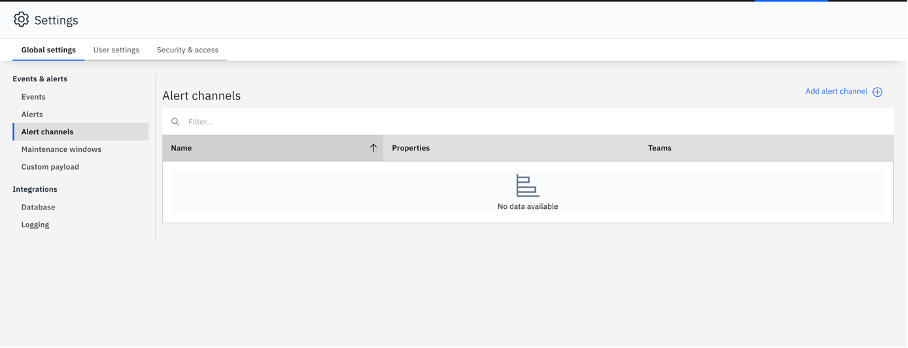
Navigate to **Settings** from the left sidebar, then open **Global settings** and go to **Events & alerts → Alert channels**. Click **Add alert channel** in the top right corner.
In the dialog that appears, select **Generic webhook** from the list of unidirectional channel types and click **Add alert channel**.
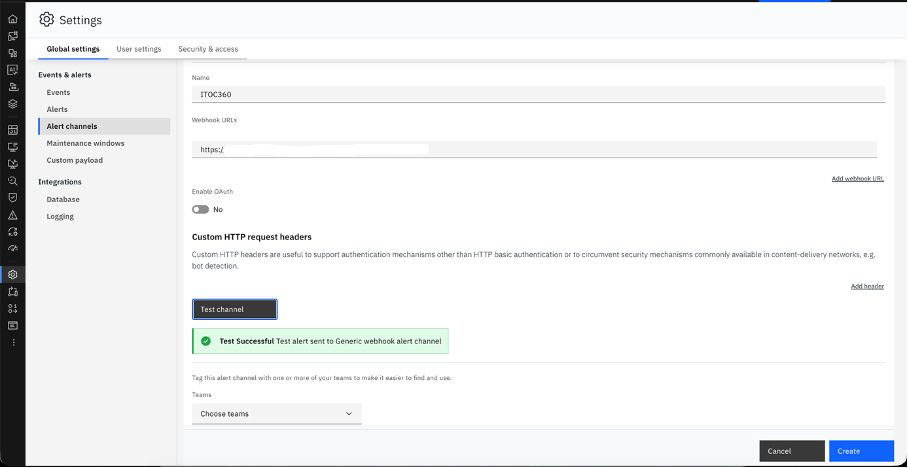
Give the channel a name, paste your ITOC360 webhook URL into the **Webhook URLs** field, and click **Test channel** to verify the connection. You should see a confirmation that the test alert was delivered successfully.
Your webhook URL follows this format:
```
https://?token=
```
Click **Create** to save the channel.
#### Creating a Smart Alert
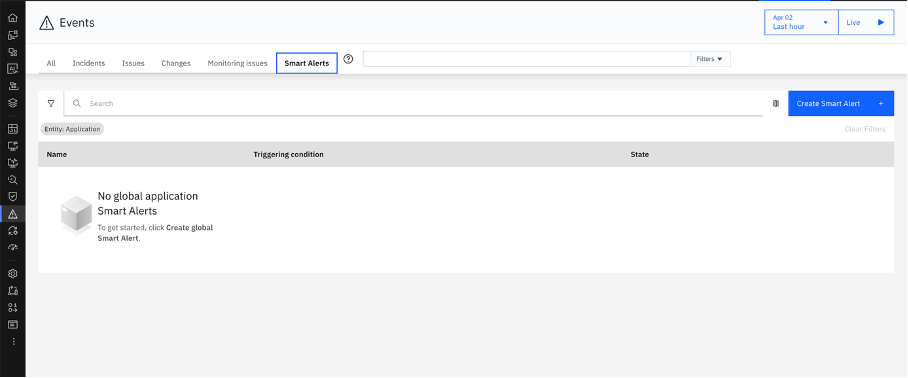
With the alert channel in place, head to **Events** in the left sidebar and switch to the **Smart Alerts** tab. Click **Create Smart Alert**.
In the trigger section, select **Erroneous calls** as the blueprint. This instructs Instana to fire an alert whenever the error rate on your monitored services exceeds the threshold you define.
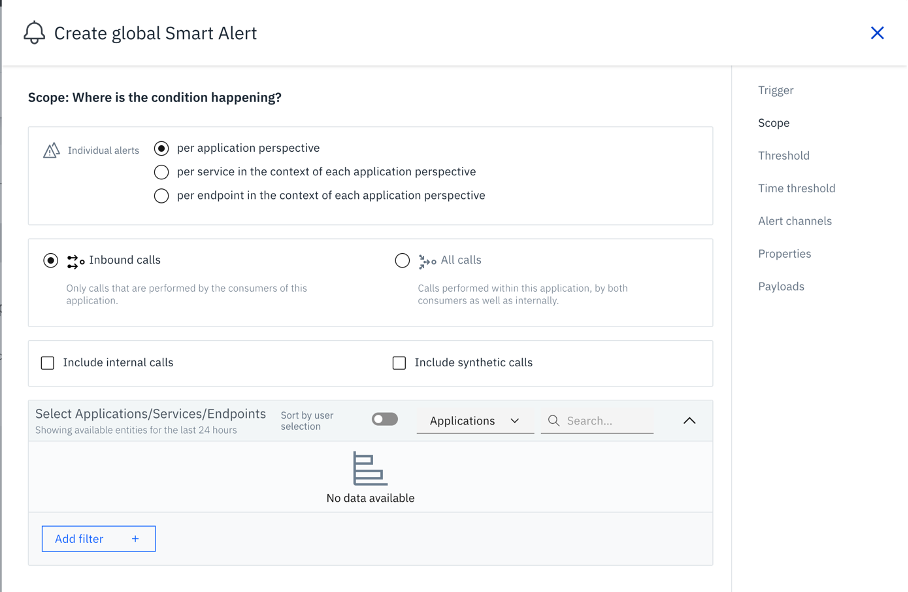
On the scope step, leave the defaults as they are — alerts will be scoped per application perspective across inbound calls.
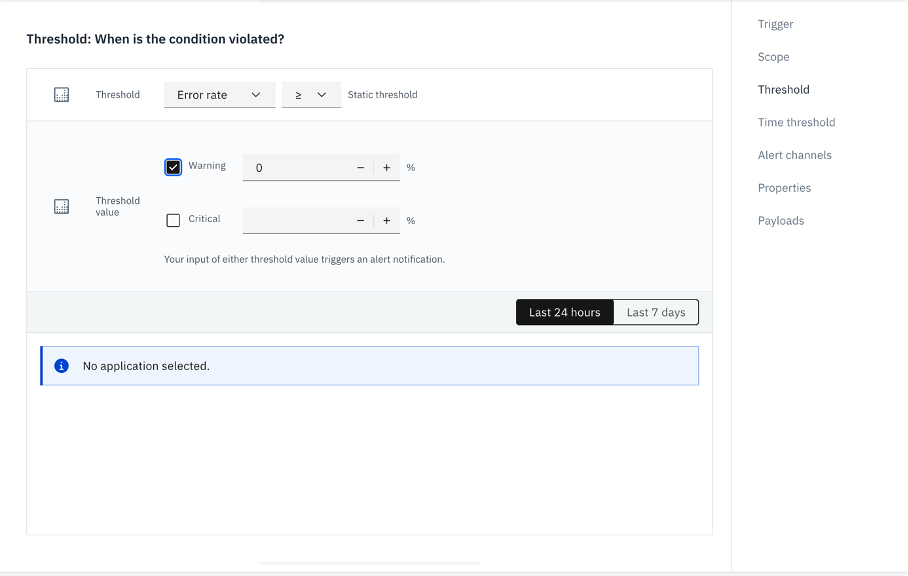
On the threshold step, check **Warning** and set the value to your desired error rate percentage. Any value above zero will cause Instana to fire as soon as errors appear, which is useful for testing the integration.
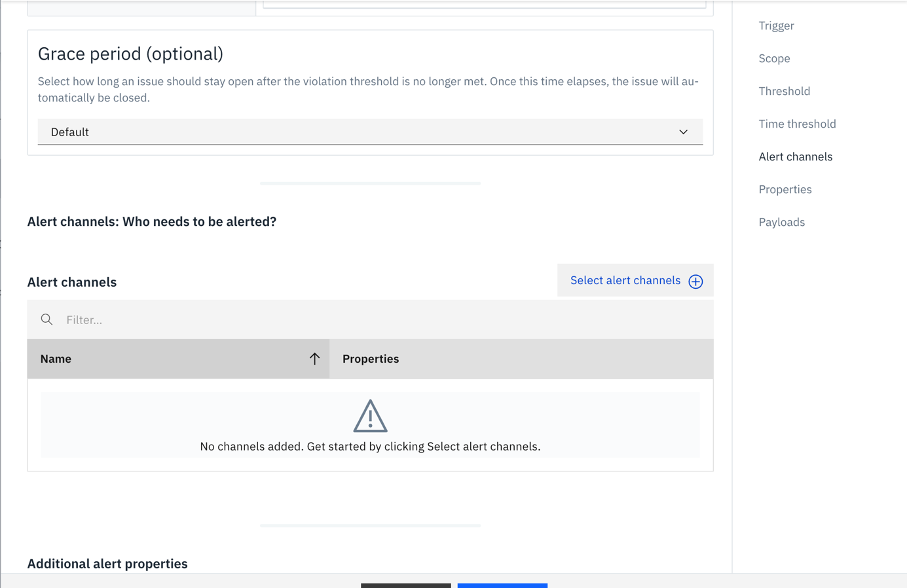
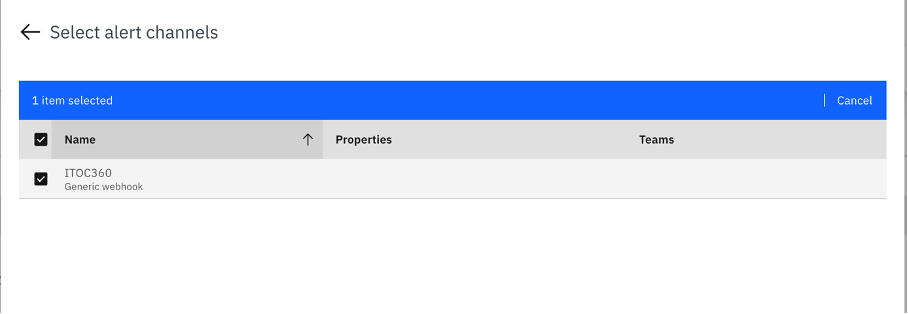
Scroll down to the **Alert channels** section and click **Select alert channels**. Find the channel you created earlier, check it, and confirm the selection.
Click **Create** to save the Smart Alert. It will immediately appear in the Smart Alerts list with its triggering condition and enabled state.
***
### In ITOC360
Go to **Sources**, click **Create Source**, and select **Instana** from the list. Copy the webhook URL shown on the source detail page and use it as the Webhook URL when configuring your alert channel in Instana, as described above.
itoc360 handles all Instana event types automatically. Issues and incidents trigger an alert when their state is `OPEN` and resolve it when the state reaches `CLOSED`. Presence events resolve when the entity comes back online. The severity field maps directly to priority — a severity of `5` (Warning) becomes Medium, while `10` (Critical) becomes Critical. Events that carry no severity, such as change events, default to Medium priority.