# CrowdStrike Integration
### Overview
This document describes the integration between CrowdStrike Falcon and our alert management platform. CrowdStrike Falcon is an endpoint detection and response (EDR) platform that monitors devices for threats, malware, and suspicious behavior in real time. When a detection or incident is triggered, Falcon can deliver a structured webhook payload to external systems for centralized alerting and on-call management.
This integration uses CrowdStrike's **Falcon Fusion SOAR** workflow engine to send detection events via webhook to the platform endpoint.
### Integration Flow
1. CrowdStrike Falcon detects a threat or suspicious activity on a monitored endpoint.
2. A Falcon Fusion SOAR workflow is triggered, evaluating the detection against configured conditions.
3. The workflow executes a **Call Webhook** action using the configured webhook from the CrowdStrike Store, sending the detection payload to the platform.
4. When a detection is closed or resolved in CrowdStrike, the workflow sends an updated payload with `status: closed` to clear the alert on the platform.
### Webhook Payload Schema
The payload sent to the platform is constructed using CrowdStrike Fusion template variables. The following schema is the recommended structure for this integration.
| Field | Type | Required | Description |
| ------------ | ------ | -------- | ------------------------------------------------------------------------- |
| incident\_id | string | Yes | Unique detection ID used to correlate trigger and resolution events |
| title | string | Yes | Human-readable detection title, typically includes detection name |
| status | string | Yes | Current detection status: `new`, `in_progress`, `true_positive`, `closed` |
| severity | string | Yes | Severity label: `Critical`, `High`, `Medium`, `Low`, `Informational` |
| description | string | No | Detailed description of the detected behavior or threat |
| host | string | No | Hostname of the affected endpoint |
| link | string | No | Direct URL to the detection in the Falcon console |
| timestamp | string | No | ISO 8601 timestamp of when the detection was created |
### Severity / Status Mapping
#### Status → Alert Type
| CrowdStrike Status | Platform Status | Description |
| ------------------ | --------------- | ----------------------------------------- |
| new | ALERT | Detection is newly created and unreviewed |
| in\_progress | ALERT | Detection is being actively investigated |
| true\_positive | ALERT | Detection confirmed as a real threat |
| closed | RESOLVE | Detection has been closed or resolved |
#### Severity → Priority
| CrowdStrike Severity | Platform Priority |
| -------------------- | ----------------- |
| Critical | CRITICAL |
| High | HIGH |
| Medium | MEDIUM |
| Low | LOW |
| Informational | LOW |
### Alert Payload Examples
#### Raised (New Detection)
This payload is sent when CrowdStrike Falcon detects a new threat on an endpoint.
```json
{
"description": "A suspicious PowerShell command was executed with encoded parameters, commonly used to evade detection.",
"detection_id": "ldt:abc123def456:789012345",
"event_id": "evt-abc123def456789012345",
"link": "https://falcon.crowdstrike.com/activity/detections/detail/ldt:abc123def456:789012345",
"severity": "High",
"severity_score": "70",
"source": "WORKSTATION-042",
"status": "new",
"summary": "Suspicious PowerShell Execution",
"timestamp": "2026-02-26T10:15:30.000Z"
}
```
#### Cleared (Detection Closed)
This payload is sent when the detection is reviewed and closed in the Falcon console.
```json
{
"description": "Detection reviewed and closed by analyst. Confirmed false positive.",
"detection_id": "ldt:abc123def456:789012345",
"event_id": "evt-abc123def456789012345",
"link": "https://falcon.crowdstrike.com/activity/detections/detail/ldt:abc123def456:789012345",
"severity": "High",
"severity_score": "70",
"source": "WORKSTATION-042",
"status": "closed",
"summary": "Suspicious PowerShell Execution",
"timestamp": "2026-02-26T10:45:00.000Z"
}
```
### Installation & Configuration
#### Step 1: Create an Alert Source in the Platform
1. Log in to the alert management platform.
2. Navigate to **Integrations** → **Add Integration**.
3. Select **CrowdStrike Falcon** as the provider.
4. Name the integration (e.g., `CrowdStrike Production`).
5. Save and copy the generated **Webhook URL** and **Token**.
#### Step 2: Open Falcon Fusion SOAR
1. Log in to the **CrowdStrike Falcon Console**.
2. Click the **CrowdStrike** logo on the top left and choose **Workflows**.
3. Click **Create a Workflow** on the top right.
#### Step 3: Configure the Trigger
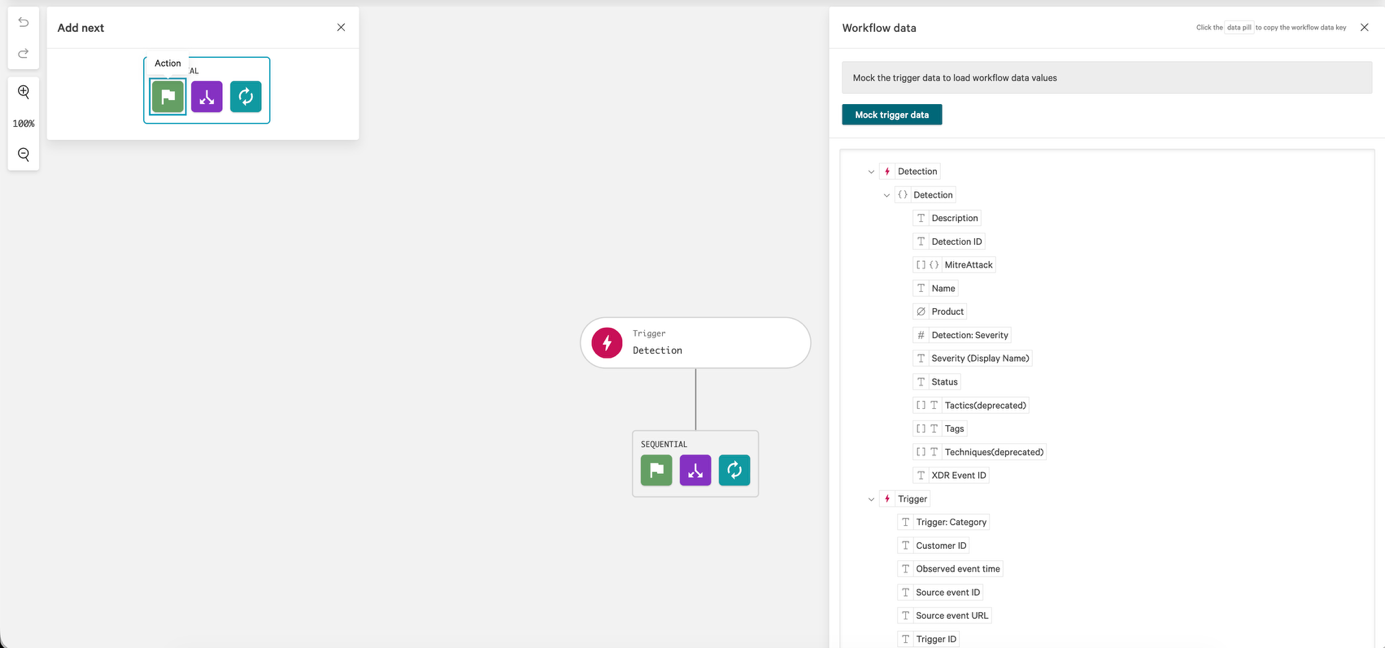
1. On the workflow canvas, add a trigger and choose **New Detection**.
2. Optionally add a **Condition** to filter by severity (e.g., severity greater than Medium).
#### Step 4: Configure the Webhook from Store
1. Click **Add Action** → choose Action type **Notification** → select **Call Webhook**.
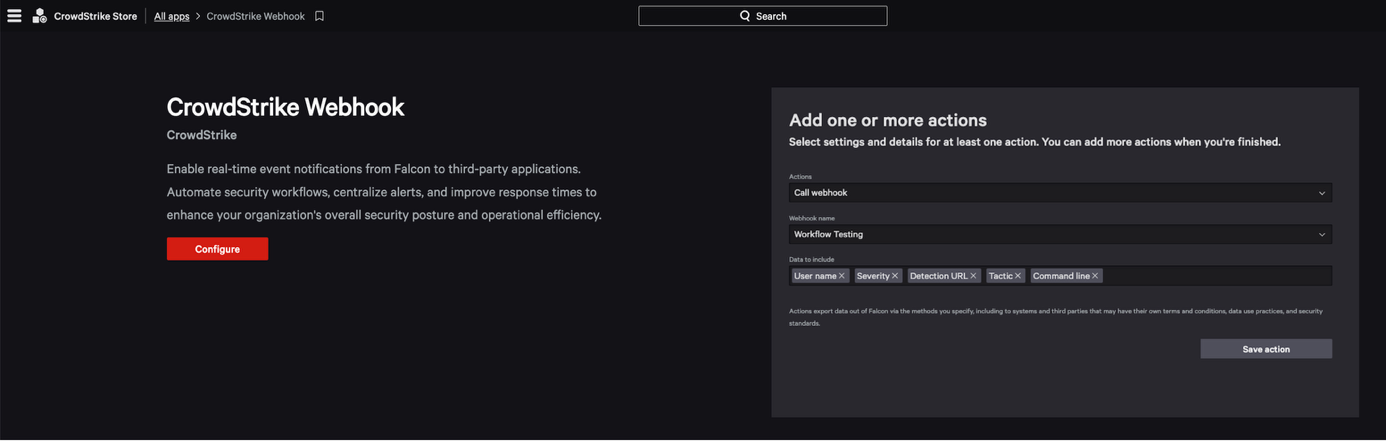
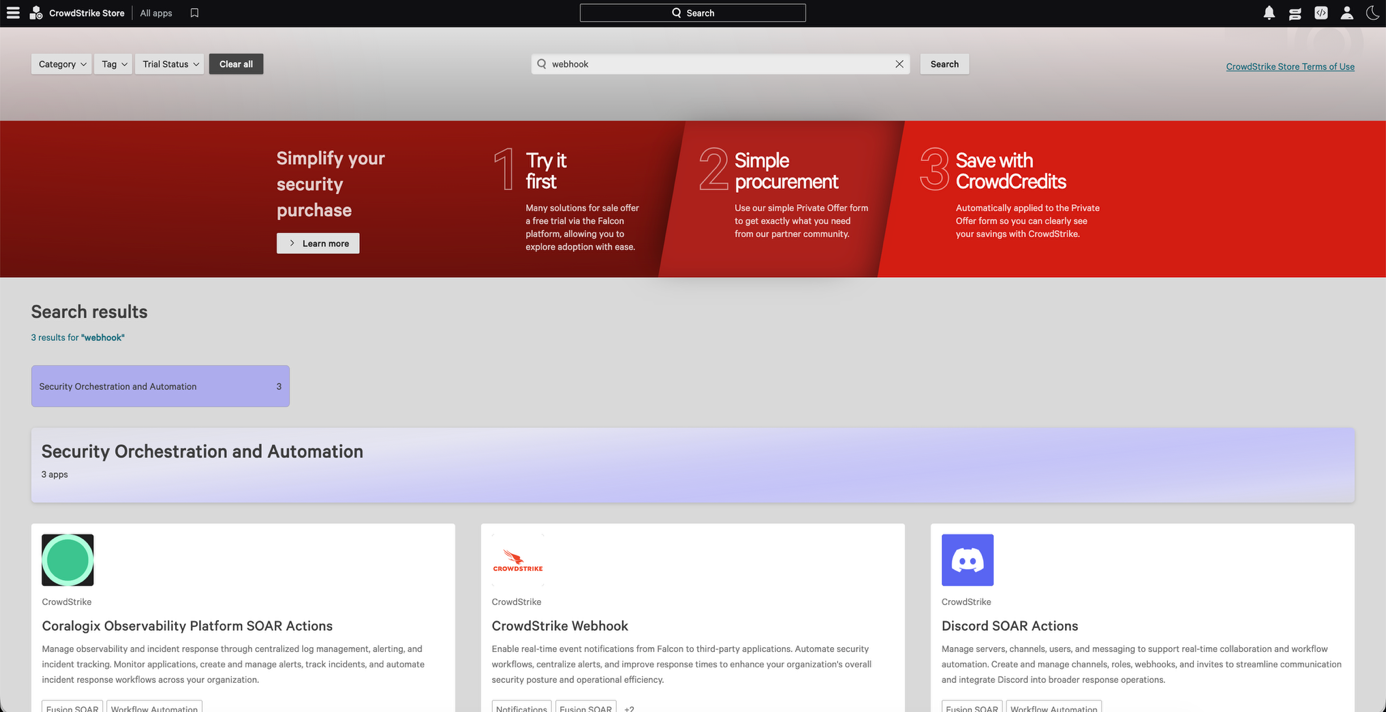
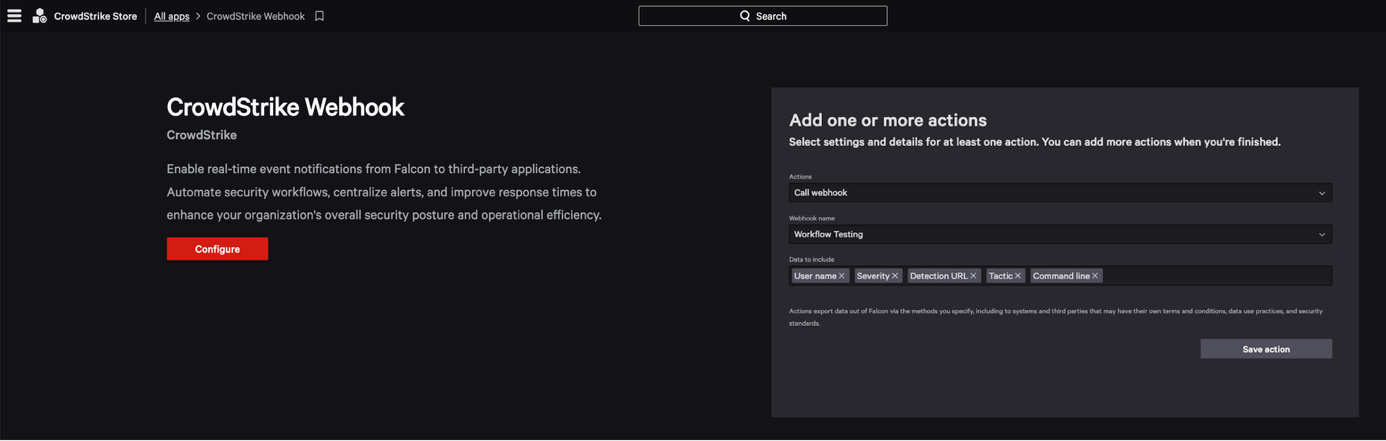
2. If the webhook is not yet configured, click the **Store** link and click **Configure** on the Webhook item.
3. The **Configure CrowdStrike Webhook** modal will open.
Fill in the fields as follows:
* **Name**: A descriptive name for this connection (e.g., `platform-oncall`)
* **Webhook URL**: Your platform webhook URL (e.g., `https:///`)
* **HMAC Secret Key**: Leave empty
* **Signature Header Name**: Leave as default (x-itoc-360)
* **Custom headers**: Add your platform token on line 1:
4. Click **Save configuration**.
#### Step 5: Set the JSON Body
1. Back in the workflow canvas, select the webhook you just configured.
2. In the data field, paste the following JSON body:
```json
{
"description": "{{Detection.Description}}",
"detection_id": "{{Detection.ID}}",
"event_id": "{{ID}}",
"link": "{{SourceEventURL}}",
"severity": "{{Detection.SeverityDisplayName}}",
"severity_score": "{{Detection.Severity}}",
"source": "{{Source}}",
"status": "{{Detection.Status}}",
"summary": "{{Detection.Name}}",
"timestamp": "{{ObservedTime}}"
}
```
#### Step 6: Save and Activate the Workflow
1. Click **Save** to save the workflow.
2. Toggle the workflow to **Active**.
3. For recovery notifications, create a second workflow triggered on detection status change to `closed`, using the same webhook and JSON body.
## Testing
#### Method 1: Trigger a Test Detection
1. In the Falcon console, navigate to **Activity** → **Detections**.
2. Use a test or simulated detection event if available in your environment.
3. Verify the payload is received in the platform's event log.
#### Method 2: Replay a Workflow
1. Navigate to **Fusion SOAR** → **Workflows**.
2. Open the configured workflow.
3. Click **Run** or **Test** to manually execute the workflow with a sample event.
4. Check the platform's `events` and `alerts` tables for the incoming record.
#### Method 3: Validate with Webhook.site
Before connecting to the platform, set the Webhook URL to `https://webhook.site` temporarily to inspect the raw payload and confirm all template variables are resolving correctly.
### Troubleshooting
| Issue | Possible Cause | Resolution |
| -------------------------- | ------------------------------------------------ | -------------------------------------------------------------------------------------------------- |
| No alerts received | Workflow not active | Ensure the workflow is toggled to Active in Falcon Fusion |
| No alerts received | Incorrect webhook URL or token | Verify the Webhook URL and `x-itoc360-token` in Custom headers of the webhook configuration |
| Template variables empty | Wrong variable path in JSON body | Test the workflow and inspect the raw payload in webhook.site to verify variable resolution |
| Recovery alerts missing | No separate workflow for closed detections | Create a second workflow triggered on detection status change to `closed` |
| Invalid payload error | Missing required fields in the JSON body | Ensure `incident_id`, `title`, `status`, and `severity` are all present and non-empty |
| Duplicate alerts | Workflow triggering on every detection update | Add a condition to trigger only on `status = new` for the alert workflow |
| Severity not mapping | `severity_display_name` returns unexpected value | Check the Falcon console for the exact severity string and update the platform mapping accordingly |
| Webhook config not visible | Webhook not yet added from Store | Navigate to Store → Configure the Webhook item before selecting it in the workflow action |