# Azure Service Health Integration
Azure Service Health keeps you informed about incidents, planned maintenance windows, and health advisories that affect the Azure services your workloads depend on. This integration routes those notifications to ITOC360 so your on-call team is looped in automatically when something impacts your Azure environment.
### How it works
When a Service Health event occurs — such as a service outage or upcoming maintenance — Azure fires a webhook to ITOC360 via an Action Group. The platform parses the payload and creates an alert. When the issue is resolved on Azure's end, a follow-up webhook with `stage: Resolved` closes the alert automatically.
### Prerequisites
* An active Azure subscription
* Your ITOC360 webhook URL and integration token (available from the Sources page in ITOC360)
### Setup
#### Step 1 — Navigate to Service Health
In the Azure Portal, search for **Service Health** in the top search bar and open it. You'll land on the Service issues view. From here, click **+ Create service health alert** in the toolbar.
#### Step 2 — Configure the scope
On the **Scope** tab, set the scope level to **Subscription** and select your subscription from the resource browser. Click **Apply**.
#### Step 3 — Configure the condition
On the **Condition** tab, the signal is automatically set to **Service health** — you don't need to change this. Configure the following:
* **Services** — leave as all services so you catch events across your entire subscription
* **Regions** — leave as all regions, or narrow down to the regions your workloads run in
* **Event types** — select the event types you want to be alerted on: Service issue, Planned maintenance, Health advisories, Security advisories\
#### Step 4 — Set up an Action Group
On the **Actions** tab, select **Use action groups** and click **+ Create action group**.
\
On the **Basics** tab of the action group wizard, fill in the details:
* **Action group name** — e.g. `itoc360`
* **Display name** — e.g. `itoc360` (max 12 characters)
* **Region** — choose the region closest to you
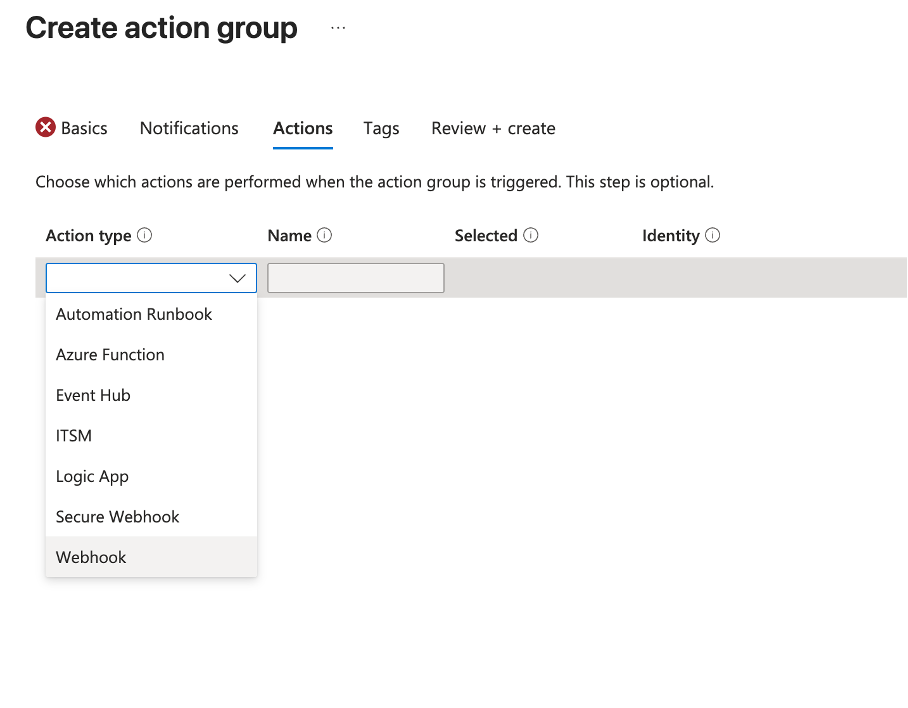
Move to the **Actions** tab. Click the **Action type** dropdown and select **Webhook**.
A side panel will open. Paste your ITOC360 webhook URL in the **URI** field:
```
https:///functions/v1/integrations?token=
```
Make sure **Enable the common alert schema** is set to **Yes** — this is required for the integration to parse the payload correctly. Click **OK**.
Review the action group summary and click **Create**.
#### Step 5 — Finish the alert rule
Back on the alert rule wizard, move to the **Details** tab. Give your rule a name like `service-health-oncall`. Click **Review + create**, then **Create**.
### Verifying the integration
You can test the integration with a curl request without waiting for a real Azure service event:
```bash
curl -X POST "https:///functions/v1/events?token=" \
-H "Content-Type: application/json" \
-d '{
"schemaId": "Microsoft.Insights/activityLogs",
"data": {
"status": "Activated",
"context": {
"activityLog": {
"eventSource": "ServiceHealth",
"eventDataId": "6fa98c0f-334a-b066-1934-1a4b3d929856",
"level": "Informational",
"operationName": "Microsoft.ServiceHealth/incident/action",
"properties": {
"title": "Virtual Machines - West Europe",
"service": "Virtual Machines",
"region": "West Europe",
"incidentType": "Incident",
"stage": "Active"
}
}
}
}
}'
```
A successful response returns the created event object with a 200 status. To test automatic resolution, send the same payload with `"stage": "Resolved"`.
### Field mappings
Azure Service Health alerts are delivered using the Common Alert Schema with an `eventSource` of `ServiceHealth`. The platform reads the following fields:
| Azure Field | Platform Field |
| -------------------------------------------------- | ----------------------------------------------------------------- |
| `data.context.activityLog.eventDataId` | Fingerprint — ties together alert and resolve events |
| `data.context.activityLog.properties.stage` | Alert type — `Active` triggers ALERT, `Resolved` triggers RESOLVE |
| `data.context.activityLog.properties.incidentType` | Priority |
| `data.context.activityLog.properties.title` | Alert title |
#### Incident type to priority mapping
| Azure Incident Type | Platform Priority |
| ------------------- | ----------------- |
| Incident | HIGH |
| ActionRequired | HIGH |
| Security | CRITICAL |
| Maintenance | LOW |
| Informational | LOW |
### Notes
Service Health alerts resolve automatically. When Azure marks an incident as resolved, the platform receives a follow-up webhook and closes the corresponding alert in ITOC360 without any manual action.
If you want to be notified only about specific event types — for example, only active incidents and not maintenance windows — adjust the **Event types** selection in the Condition step accordingly.