# Azure DevOps Integration
Azure DevOps has a feature called Service Hooks that can fire HTTP requests whenever something happens in your project — a work item gets created, a build finishes, a PR is merged, whatever you care about. This page covers wiring that up to the on-call platform.
### 1. Create an organization and project
Go to [dev.azure.com](https://dev.azure.com/) and sign in. If you've never used Azure DevOps before, you'll hit a blank slate asking you to create an organization:
Click **Create new organization**, pick a name and a hosting region, and you'll land straight on the project creation form:
Name the project whatever you like — something like `test-oncall` works fine. Keep visibility as **Private** and hit **Create project**. You'll end up here once it's ready:
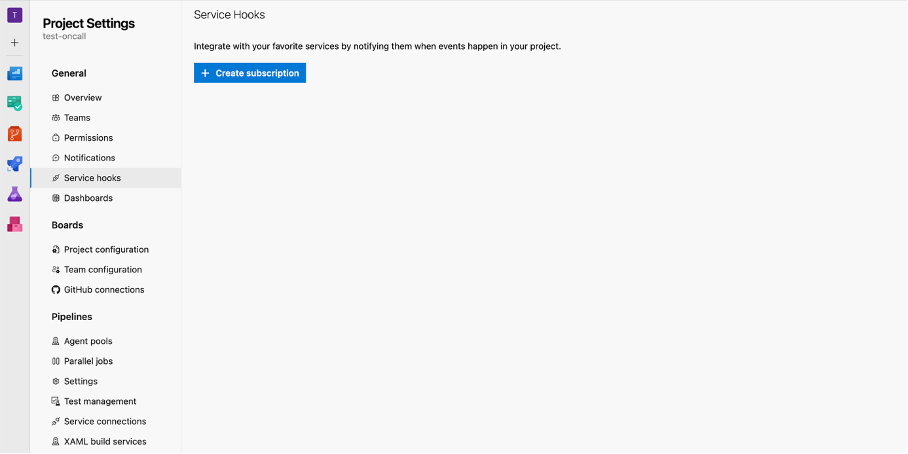
Project Settings > Service Hooks
### 2. Open Service Hooks
Click **Project Settings** in the bottom-left corner of the screen. Under the General section on the left panel you'll find **Service hooks**. Click it.
The page is empty to start. Hit **+ Create subscription**.
***
### 3. Pick Web Hooks
A modal pops up with a list of services you can integrate with. Scroll down and select **Web Hooks** — that's the plain HTTP option that works with any endpoint, no special setup needed on either side.
Click **Next**.
***
### 4. Set the trigger
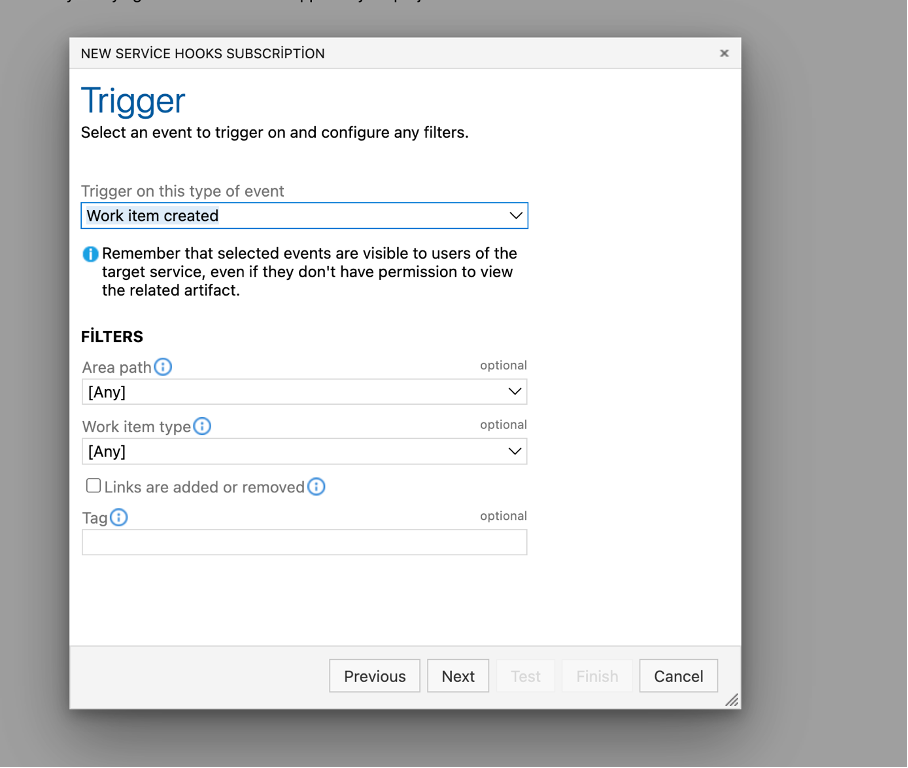
Here you choose what event fires the webhook. **Work item created** is a solid starting point — every time someone opens a new bug, task, or incident, the platform gets notified right away.
Leave both filters (`Area path` and `Work item type`) at `[Any]` unless you want to narrow it down to a specific area or item type. Click **Next**.
***
### 5. Enter the webhook URL
Paste your on-call platform's webhook URL into the **URL** field. Skip the authentication fields — auth is handled via the token baked into the URL. Make sure all three dropdown values (`Resource details to send`, `Messages to send`, `Detailed messages to send`) stay on **All**, otherwise you'll get a trimmed-down payload.
Before saving, click **Test**.
***
### 6. Confirm the test result
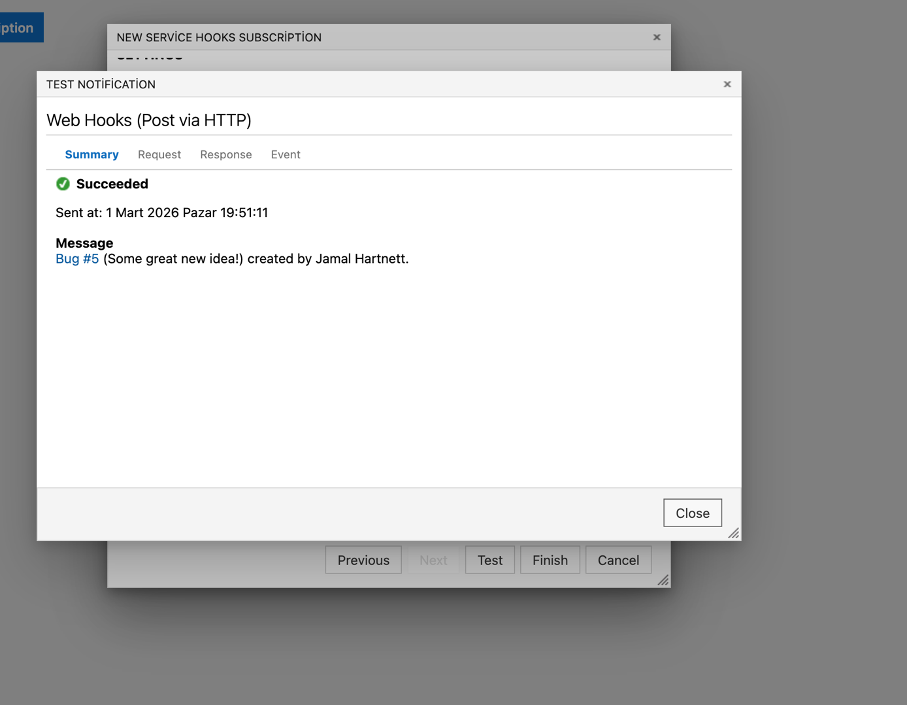
If everything is set up correctly, you'll see this:
Close the test dialog and hit **Finish** to save the subscription. That's it — the hook is live.
***
### Field mappings
Azure DevOps doesn't give you a template editor for the payload — every event type sends a fixed JSON structure. The platform pulls the following fields out of it:
| DevOps Field | Platform Field |
| --------------------------------------------------- | ------------------------------------------------------------- |
| `resource.id` | Fingerprint — ties together all events for the same work item |
| `resource.fields["System.State"]` | `Resolved` or `Closed` → RESOLVE, anything else → ALERT |
| `resource.fields["Microsoft.VSTS.Common.Severity"]` | Priority |
| `resource.fields["System.Title"]` | Alert title |
| `resource.fields["System.WorkItemType"]` | Alert context |
Severity to priority mapping:
| DevOps Severity | Platform Priority |
| --------------- | ----------------- |
| 1 - Critical | CRITICAL |
| 2 - High | HIGH |
| 3 - Medium | MEDIUM |
| 4 - Low | LOW |