# Azure Activity Logs Integration
Azure Activity Logs track operations performed across your subscription — things like resource creation, deletion, configuration changes, and access events. This integration forwards those events to ITOC360 as alerts so your on-call team gets notified when something significant happens in your Azure environment.
### How it works
Azure Monitor watches for activity log events that match your alert rule. When a match is found, it fires a webhook to ITOC360 via an Action Group. The platform parses the incoming payload and creates an alert automatically.
Since Activity Log alerts don't have a "resolved" state — each event is a one-time occurrence rather than an ongoing condition — every incoming webhook creates a new alert.
### Prerequisites
* An active Azure subscription
* Access to Azure Monitor with sufficient permissions to create alert rules and action groups
* Your ITOC360 webhook URL and token (available from the Sources page in ITOC360)
### Setup
#### Step 1 — Create an alert rule
Go to **Azure Portal → Monitor → Alerts** and click **+ Create → Alert rule**.
On the **Scope** tab, set the scope level to **Subscription** and select your subscription from the resource browser. Click **Apply**.
#### Step 2 — Configure the condition
On the **Condition** tab, choose **All Administrative operations** as the signal. This covers the broadest range of activity log events. You can narrow it down later if needed — for example, filtering by a specific operation or resource type.
Leave Event Level, Status, and Event initiated by at their defaults unless you want to filter further.
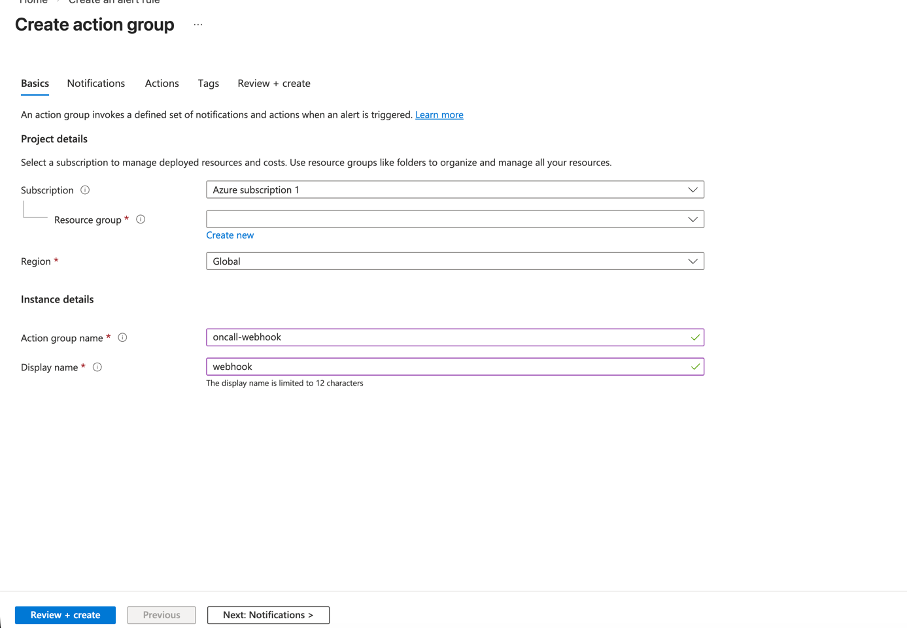
#### Step 3 — Create an Action Group
On the **Actions** tab, select **Use action groups** and then click **+ Create action group**.
Fill in the basics:
* **Action group name** — something descriptive like `oncall-webhook`
* **Display name** — max 12 characters, e.g. `oncall`
* **Region** — Global works fine here

Move to the **Actions** tab within the action group wizard. Set the action type to **Webhook**, give it a name, and paste your ITOC360 webhook URL:
```
https:///functions/v1/integrations?token=
```
**Important:** Make sure **Enable the common alert schema** is set to **Yes**. If this is left off, the payload structure will differ and the integration won't parse correctly.
Click **OK**, then complete the action group creation.
#### Step 4 — Finish the alert rule
Back on the alert rule wizard, give your rule a name under the **Details** tab — something like `activity-log-oncall`. Set the severity level if relevant (it doesn't affect routing in ITOC360 but helps with Azure's own alerting view).
Click **Review + create**, then **Create**.
Once created, you should see the rule listed as **Enabled** in the alert rules list.
### Verifying the integration
The easiest way to test without waiting for a real event is to perform any operation in Azure — editing a resource tag, changing a setting, or similar. This triggers an Administrative activity log event and should fire the webhook within a minute or two.
You can also test directly with a curl request:
```bash
curl -X POST "https:///functions/v1/integrations?token=" \
-H "Content-Type: application/json" \
-d '{
"schemaId": "Microsoft.Insights/activityLogs",
"data": {
"status": "Activated",
"context": {
"activityLog": {
"eventSource": "Administrative",
"eventDataId": "8195a56a-85de-4663-943e-1a2bf401ad94",
"level": "Warning",
"operationName": "Microsoft.Insights/actionGroups/write",
"status": "Started",
"subscriptionId": "your-subscription-id"
}
}
}
}'
```
A successful response returns the created event object with a 200 status.
***
### Field mappings
Azure Activity Log alerts use the Common Alert Schema. The platform reads the following fields:
| Azure Field | Platform Field |
| ---------------------------------------- | ------------------------------------------ |
| `data.context.activityLog.eventDataId` | Fingerprint — ties together related events |
| `data.context.activityLog.level` | Priority |
| `data.context.activityLog.operationName` | Alert title |
| `data.context.activityLog.eventSource` | Alert context |
#### Level to priority mapping
| Azure Level | Platform Priority |
| ------------- | ----------------- |
| Critical | CRITICAL |
| Error | HIGH |
| Warning | MEDIUM |
| Informational | LOW |
***
### Notes
Activity Log alerts don't resolve automatically. Each event is a discrete occurrence, so alerts created from this integration will need to be acknowledged or closed manually in itoc360.
If you want to limit alerts to a specific operation type — for example, only fire when a virtual machine is deleted — you can do so by selecting a more specific signal in the Condition step instead of "All Administrative operations".