> For the complete documentation index, see [llms.txt](https://docs.itoc360.com/llms.txt). Markdown versions of documentation pages are available by appending `.md` to page URLs; this page is available as [Markdown](https://docs.itoc360.com/integrations/inbound-integrations/infrastructure-monitoring/checkmk-integration.md).
# Checkmk Integration
[Checkmk](https://checkmk.com/) is an enterprise-grade monitoring platform used to monitor servers, applications, networks, and cloud infrastructure. By installing a custom notification script on your Checkmk site, you can forward host and service alerts directly to ITOC360 and trigger your on-call escalation policies in real time.
### Provider Configuration & Mapping
ITOC360 uses the `notification_type` field from the Checkmk payload to determine the alert type.
| Checkmk Notification Type | ITOC360 Type |
| ------------------------- | ------------ |
| `PROBLEM` | ALERT |
| `RECOVERY` | RESOLVE |
Priority is read from the `severity` field, which maps to the Checkmk host severity environment variable.
| Checkmk Severity | ITOC360 Priority |
| ---------------- | ---------------- |
| `OK` | LOW |
| `WARNING` | MEDIUM |
| `CRITICAL` | CRITICAL |
### Setup Instructions
#### Step 1: Get Your Webhook URL and Token
1. Log in to your ITOC360 platform.
2. Go to **Sources → Add Source**.
3. Select **Checkmk** as your provider.
4. Save the configuration and copy the generated **Token**.
#### Step 2: Install the Notification Script
The ITOC360 notification script must be placed in the Checkmk notifications directory on your Checkmk server.
Create the file at the following path:
```
~/local/share/check_mk/notifications/itoc360.sh
```
Paste the following content into the file:
```bash
#!/bin/bash
curl -s -X POST "https://api.itoc360.app/functions/v1/events?token=$NOTIFY_PARAMETER_1" \
-H "Content-Type: application/json" \
-d "{
\"host\": \"$NOTIFY_HOSTNAME\",
\"service\": \"$NOTIFY_SERVICEDESC\",
\"state\": \"$NOTIFY_SERVICESTATE\",
\"host_state\": \"$NOTIFY_HOSTSTATE\",
\"notification_type\": \"$NOTIFY_NOTIFICATIONTYPE\",
\"output\": \"$NOTIFY_SERVICEOUTPUT\",
\"host_output\": \"$NOTIFY_HOSTOUTPUT\",
\"severity\": \"$NOTIFY_HOSTSEVERITY\",
\"timestamp\": \"$NOTIFY_SHORTDATETIME\"
}"
```
Then make the script executable:
```bash
chmod +x ~/local/share/check_mk/notifications/itoc360.sh
```
#### Step 3: Create a Notification Rule
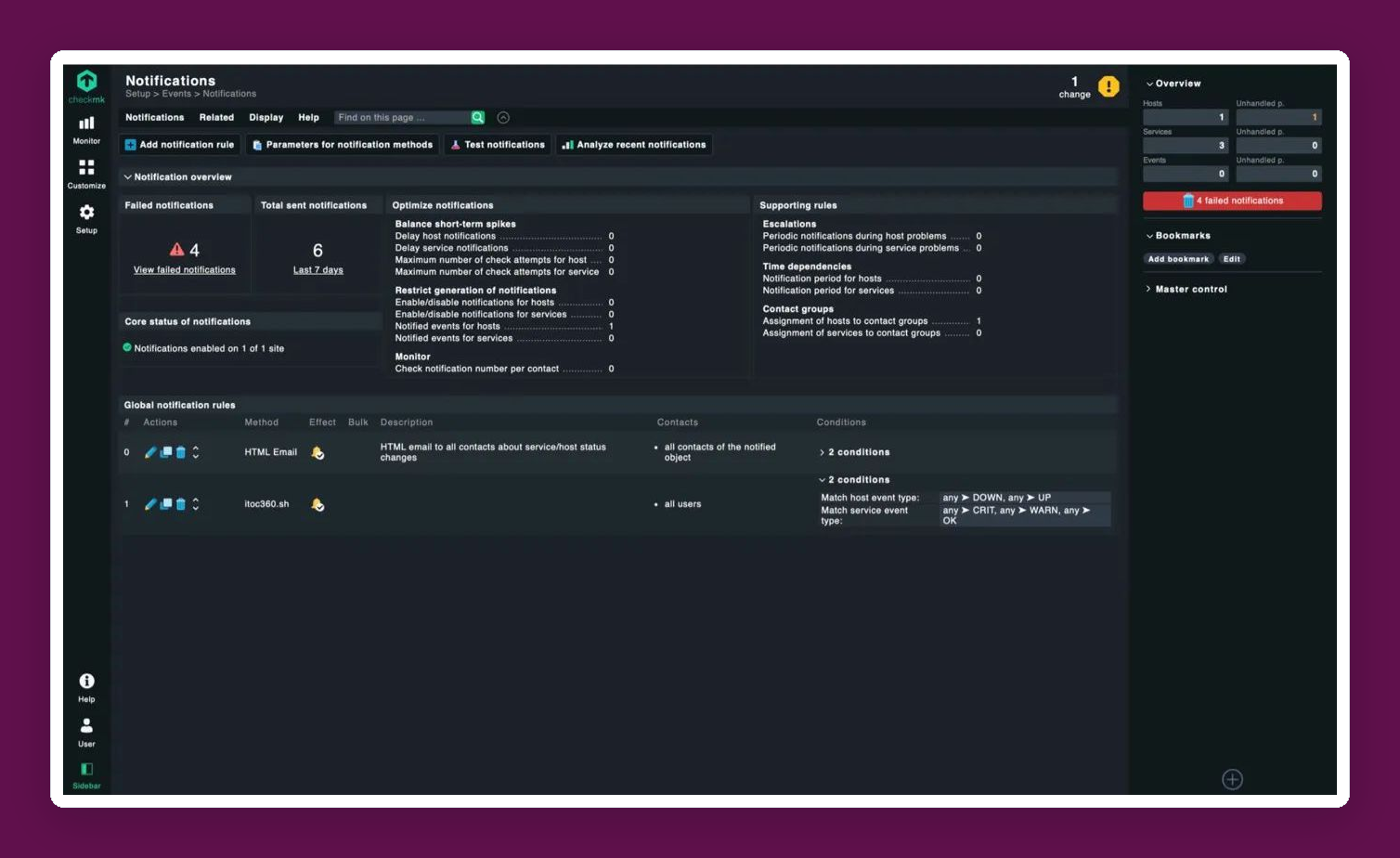
1. In Checkmk, go to **Setup → Events → Notifications**.
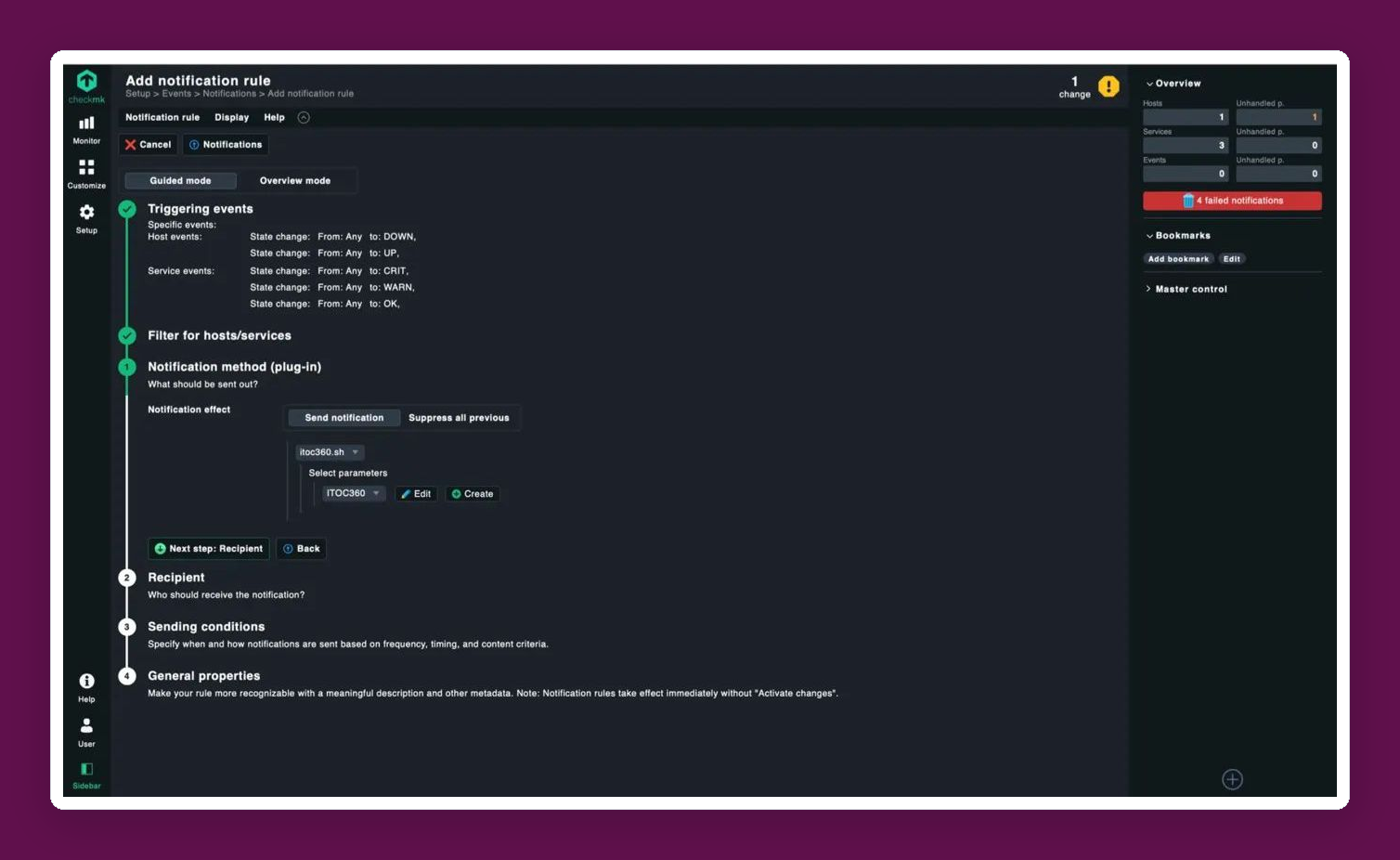
2. Click **Add notification rule**.
3. In **Triggering events**, leave the defaults (host DOWN/UP, service CRIT/WARN/OK).
4. In **Notification method (plug-in)**, select `itoc360.sh` from the dropdown.
5. Click **Create** next to the parameters field.
6. In the **New itoc360.sh parameter** dialog:
* **Description:** Enter a name (e.g. `ITOC360`)
* **Parameters:** Paste your ITOC360 token copied from Step 1
* Click **Save**
7. Select the saved parameter from the dropdown.
8. In **Recipient**, select **All users** or the specific users you want to notify.
9. Click through the remaining steps and save the rule.
#### Step 4: Test the Integration
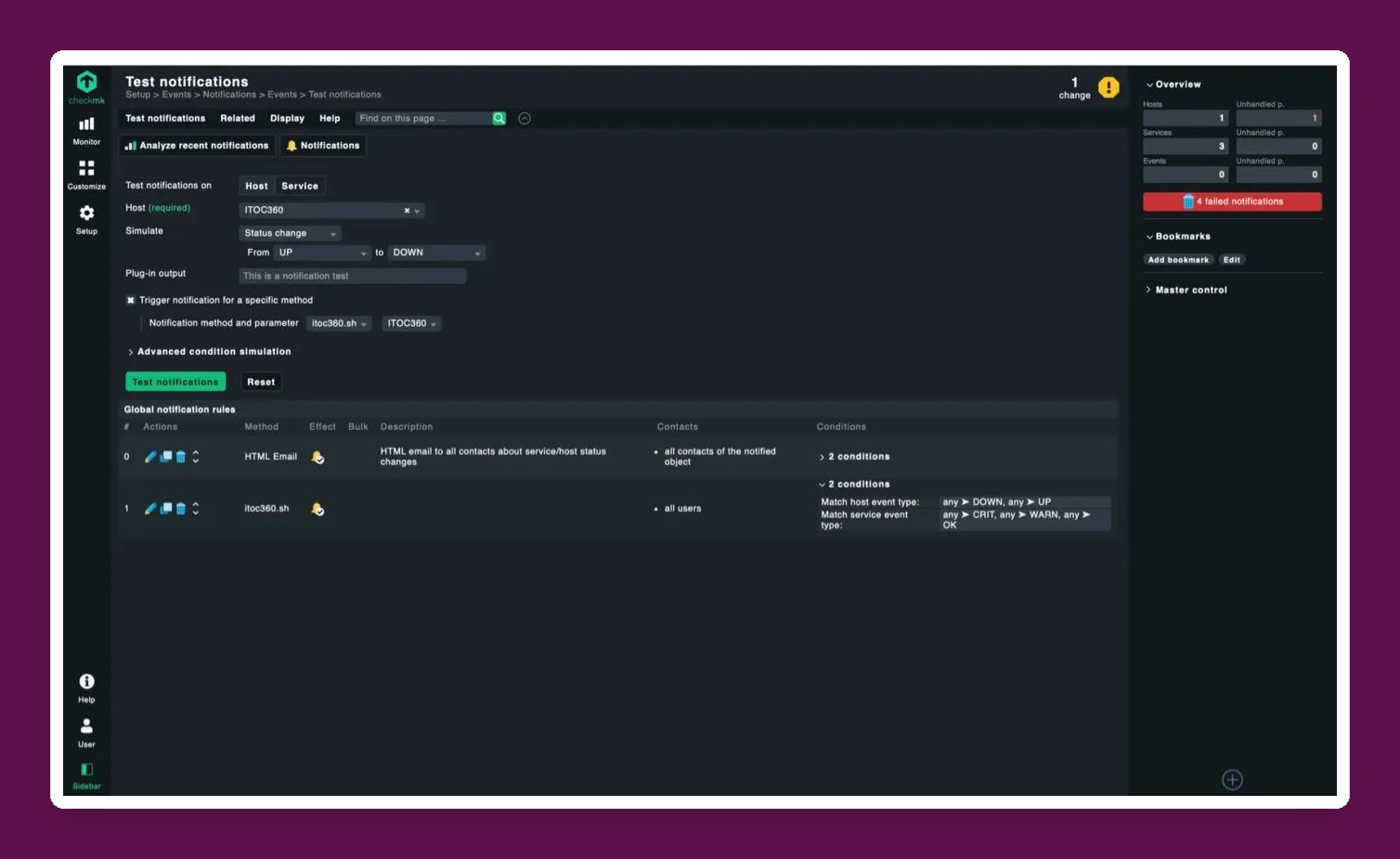
1. Go to **Setup → Events → Notifications → Test notifications**.
2. Select a **Host** from your monitored devices.
3. Set **Simulate** to **Status change → From UP to DOWN**.
4. Check **Trigger notification for a specific method** and select `itoc360.sh` with your parameter.
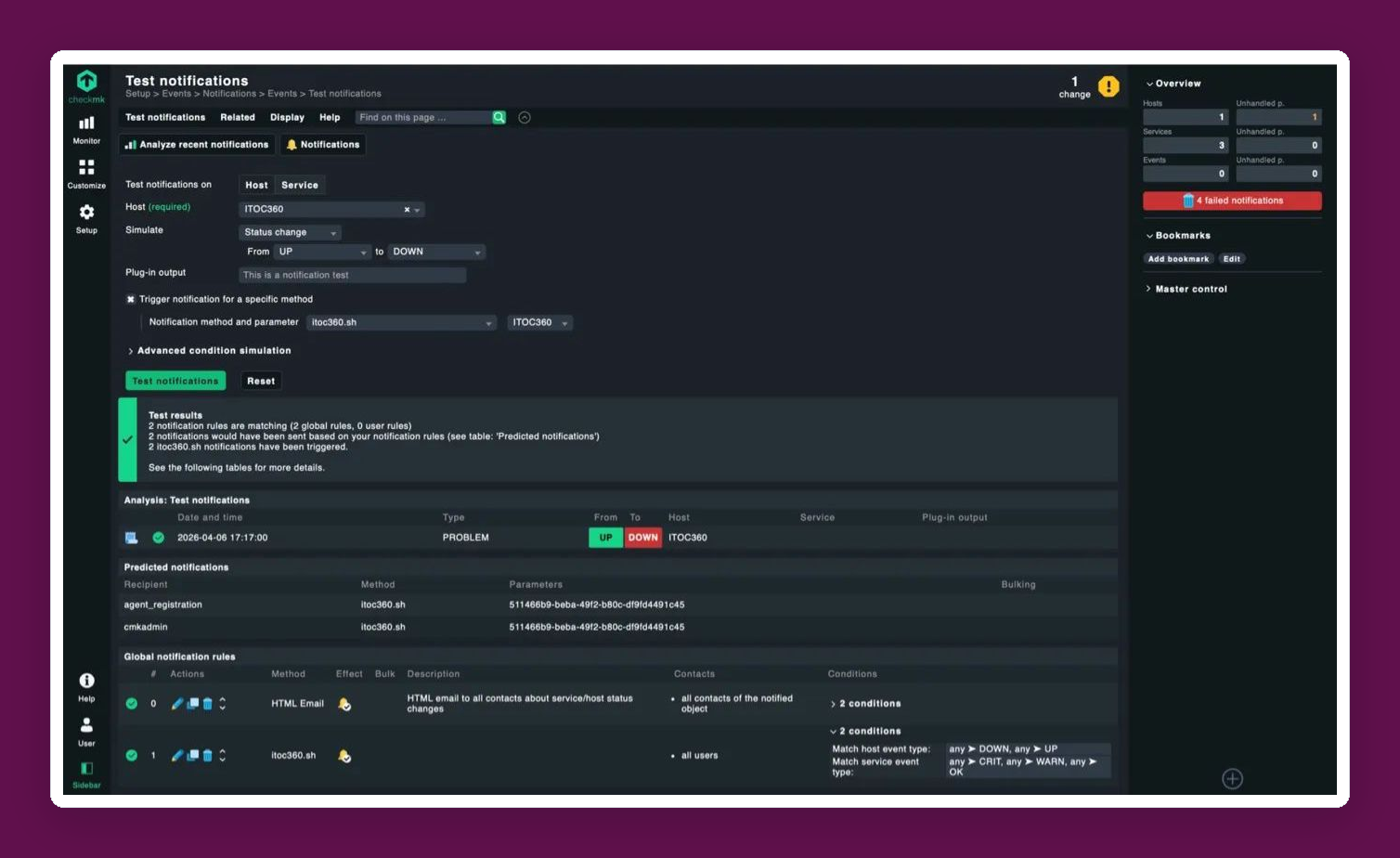
5. Click **Test notifications**.
6. A green **Test results** box will confirm that the notifications were triggered.
7. Log in to ITOC360 and go to **Alerts** to verify the alert was received.
---
# Agent Instructions
This documentation is published with GitBook. GitBook is the documentation platform designed so that both humans and AI agents can read, navigate, and reason over technical content effectively. Learn more at gitbook.com.
## Querying This Documentation
If you need additional information that is not directly available in this page, you can query the documentation dynamically by asking a question.
Perform an HTTP GET request on the current page URL with the `ask` query parameter, and the optional `goal` query parameter:
```
GET https://docs.itoc360.com/integrations/inbound-integrations/infrastructure-monitoring/checkmk-integration.md?ask=&goal=
```
`ask` is the immediate question: it should be specific, self-contained, and written in natural language.
`goal` is optional and describes the broader end goal you are ultimately trying to accomplish on behalf of the user. GitBook uses it to tailor the answer towards what is most useful for that goal.
The response will contain a direct answer to the question and relevant excerpts and sources from the documentation.
Use this mechanism when the answer is not explicitly present in the current page, you need clarification or additional context, or you want to retrieve related documentation sections.