> For the complete documentation index, see [llms.txt](https://docs.itoc360.com/llms.txt). Markdown versions of documentation pages are available by appending `.md` to page URLs; this page is available as [Markdown](https://docs.itoc360.com/integrations/inbound-integrations/cloud-monitoring/aws-cloudtrail-integration.md).
# AWS Cloudtrail Integration
## AWS CloudTrail
AWS CloudTrail records every change made in your AWS account: who did it, from where, and when. By connecting CloudTrail to ITOC360, security-relevant changes such as a trail being stopped, an IAM policy being attached, or a security group being opened turn into alerts your on-call team can act on right away.
Events reach ITOC360 through Amazon EventBridge. CloudTrail hands each event to EventBridge, a rule filters the ones that matter, and an API destination delivers them to ITOC360.
### Before you begin
You will need:
* An AWS account with permission to manage CloudTrail and EventBridge
* An ITOC360 account with permission to create sources
### Create the source in ITOC360
1. In ITOC360, go to **Sources** and click **Create Source**.
2. Select **AWS CloudTrail** as the provider and give the source a name.
3. Save the source and copy the **Source Token**. You will paste it into AWS in a later step.
### Make sure CloudTrail is logging
EventBridge only receives CloudTrail events while at least one trail is logging. If you already have a trail, you can skip ahead to the next section.
1. Open the **CloudTrail** console and click **Create a trail**.
2. Enter a trail name and click **Create trail**. Trails created from the console are multi-region by default, which is what you want.
3. Back on the **Trails** page, confirm that **Multi-region trail** is **Yes** and the status shows **Logging**.
### Create a connection
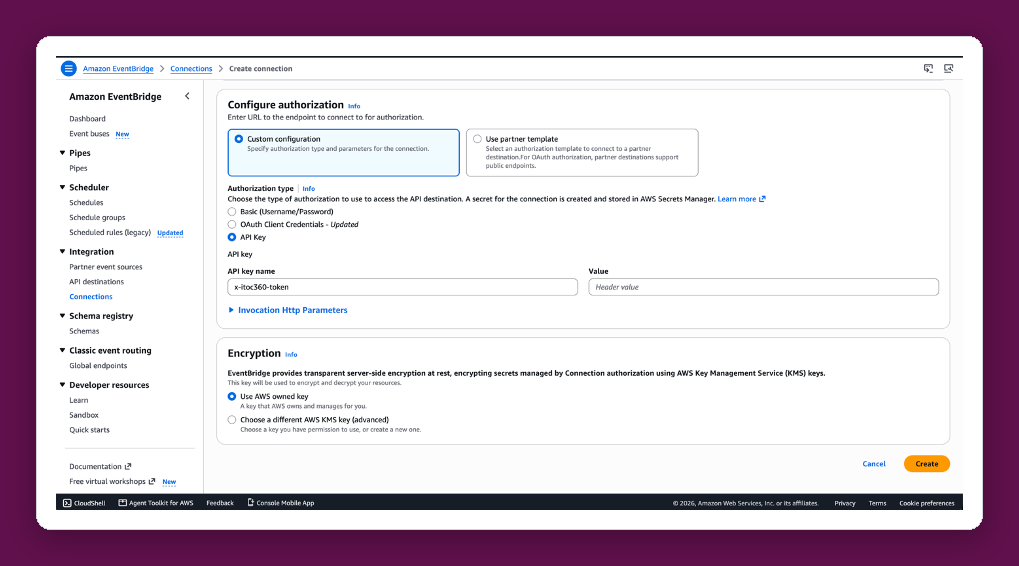
The connection stores your Source Token so EventBridge can authenticate with ITOC360.
1. Open the **Amazon EventBridge** console.
2. In the left menu, under **Integration**, click **Connections**, then **Create connection**.
3. Enter a name such as `itoc360-connection` and leave **API type** as **Public**.
4. Under **Configure authorization**, choose **Custom configuration** and set **Authorization type** to **API Key**.
5. Fill in the API key fields:
* **API key name:** `x-itoc360-token`
* **Value:** your ITOC360 Source Token
6. Leave encryption as **Use AWS owned key** and click **Create**.
7. The connection status should change to **Authorized**.
Type the API key name by hand rather than pasting it. Copied text can carry hidden characters, and AWS will reject the name or send the wrong header.
### Create an API destination
1. In the left menu, under **Integration**, click **API destinations**, then **Create API destination**.
1. Fill in the form:
* **Name:** `itoc360-destination`
* **API destination endpoint:** `https://api.itoc360.app/functions/v1/events`
* **HTTP method:** `POST`
* **Connection:** choose **Use an existing connection** and select the connection you created
2. Click **Create**.
Don't add the token to the endpoint URL. AWS doesn't accept query strings in this field, and the connection already sends the token as a header.
### Create the rule
The rule decides which CloudTrail events are sent to ITOC360.
1. In the left menu, click **Event buses**, then open the **default** bus. CloudTrail events only arrive on the default bus, so don't create a custom one.
2. On the **Rules** tab, click **Create rule** and switch **Builder mode** to **Advanced builder**.
3. Enter a name such as `itoc360-cloudtrail`, keep **Event bus** as **default**, and make sure the rule is enabled. Click **Next**.
4. Under **Creation method**, choose **Custom pattern (JSON editor)** and paste the pattern below. Click **Next**.
```json
{
"$or": [
{
"detail-type": [
"AWS Console Sign In via CloudTrail"
]
},
{
"detail-type": [
"AWS API Call via CloudTrail"
],
"detail": {
"readOnly": [
false
],
"eventName": [
"StopLogging",
"DeleteTrail",
"UpdateTrail",
"PutEventSelectors",
"DisableKey",
"ScheduleKeyDeletion",
"DeleteDetector",
"StopConfigurationRecorder",
"DeleteConfigurationRecorder",
"DeleteDeliveryChannel",
"LeaveOrganization",
"CreateUser",
"CreateAccessKey",
"CreateLoginProfile",
"UpdateLoginProfile",
"DeactivateMFADevice",
"DeleteVirtualMFADevice",
"CreatePolicy",
"DeletePolicy",
"CreatePolicyVersion",
"DeletePolicyVersion",
"SetDefaultPolicyVersion",
"AttachUserPolicy",
"DetachUserPolicy",
"AttachRolePolicy",
"DetachRolePolicy",
"AttachGroupPolicy",
"DetachGroupPolicy",
"PutUserPolicy",
"PutRolePolicy",
"PutGroupPolicy",
"DeleteUserPolicy",
"DeleteRolePolicy",
"DeleteGroupPolicy",
"PutBucketPolicy",
"DeleteBucketPolicy",
"PutBucketAcl",
"PutBucketPublicAccessBlock",
"DeleteBucketPublicAccessBlock",
"DeleteBucket",
"AuthorizeSecurityGroupIngress",
"AuthorizeSecurityGroupEgress",
"RevokeSecurityGroupIngress",
"RevokeSecurityGroupEgress",
"CreateSecurityGroup",
"DeleteSecurityGroup",
"CreateNetworkAcl",
"CreateNetworkAclEntry",
"DeleteNetworkAcl",
"DeleteNetworkAclEntry",
"ReplaceNetworkAclEntry",
"ReplaceNetworkAclAssociation",
"CreateCustomerGateway",
"DeleteCustomerGateway",
"AttachInternetGateway",
"CreateInternetGateway",
"DeleteInternetGateway",
"DetachInternetGateway",
"CreateRoute",
"CreateRouteTable",
"ReplaceRoute",
"ReplaceRouteTableAssociation",
"DeleteRouteTable",
"DeleteRoute",
"DisassociateRouteTable",
"CreateVpc",
"DeleteVpc",
"ModifyVpcAttribute",
"AcceptVpcPeeringConnection",
"CreateVpcPeeringConnection",
"DeleteVpcPeeringConnection",
"RejectVpcPeeringConnection"
]
}
}
]
}
```
5. Set **Target types** to **EventBridge API destination**, choose **Use an existing API destination**, and select the destination you created. Leave **Execution role** as **Create a new role for this specific resource**.
6. Click **Next** through the tags step, review the settings, and click **Create rule**.
### Why this event pattern
The recommended pattern follows the monitoring controls in the **CIS AWS Foundations Benchmark**. It forwards console sign-ins and the write operations that matter for security. Everything else is filtered out inside AWS before it ever reaches ITOC360.
Keep `"readOnly": [false]` in any pattern you write. Without it, EventBridge's own calls (assuming its role and decrypting the connection secret) are recorded by CloudTrail, match the rule, and trigger another delivery. The result is an endless loop of alerts and a growing EventBridge bill.
### Add the rule in us-east-1
EventBridge works per region. CloudTrail delivers each event to the EventBridge in the region where it happened, and global services such as IAM, as well as root user sign-ins, are recorded in **US East (N. Virginia)**.
Repeat the connection, API destination, and rule steps:
* In **us-east-1**, so IAM changes and root sign-ins reach ITOC360
* In every region where you run resources you want to monitor
You can use the same Source Token everywhere, and all regions report to the same ITOC360 source.
### Alert priorities
ITOC360 sets the alert priority from the CloudTrail event name:
| Priority | Events |
| ------------ | ------------------------------------------------------------------------------------------------------------------------------------------------------------------------------------------------------------------------------------------------------------------- |
| **Critical** | Turning off logging or detection: `StopLogging`, `DeleteTrail`, `UpdateTrail`, `PutEventSelectors`, `DisableKey`, `ScheduleKeyDeletion`, `DeleteDetector`, `StopConfigurationRecorder`, `DeleteConfigurationRecorder`, `DeleteDeliveryChannel`, `LeaveOrganization` |
| **High** | Identity and access changes: IAM users, access keys, MFA devices and policies; S3 bucket policies, ACLs and public access blocks; `DeleteBucket`; security group changes |
| **Medium** | Network changes (NACLs, gateways, route tables, VPCs and peering), `ConsoleLogin`, and any event not listed above |
You can change these mappings per source in ITOC360.
CloudTrail events record actions, not ongoing states, so there is no recovery event. Alerts stay open until your team resolves them in ITOC360.
### Test the integration
1. In the EC2 console, create a security group and then delete it.
2. Within a few minutes, **CreateSecurityGroup** and **DeleteSecurityGroup** alerts should appear in ITOC360 with **High** priority.
CloudTrail usually delivers events within a few minutes, but delays of up to 15 minutes are normal.
### Troubleshooting
**Alerts stopped arriving.** Open **Connections** in EventBridge. If the status shows **Deauthorized**, AWS disabled the connection after ITOC360 rejected a request, usually because of a wrong token. Edit the connection, re-enter `x-itoc360-token` and your Source Token, and save. The API destination becomes active again once the connection is **Authorized**.
**IAM changes or root sign-ins don't show up.** These events are recorded in us-east-1. Make sure you created the rule there as well.
**Too many alerts.** Check that your rule uses the recommended pattern and that `"readOnly": [false]` is present.
**No events at all.** Confirm that your trail shows **Logging** on the Trails page. A stopped trail sends nothing to EventBridge.
---
# Agent Instructions
This documentation is published with GitBook. GitBook is the documentation platform designed so that both humans and AI agents can read, navigate, and reason over technical content effectively. Learn more at gitbook.com.
## Querying This Documentation
If you need additional information that is not directly available in this page, you can query the documentation by asking a question.
Perform an HTTP GET request on the following URL with the `ask` and `goal` query parameters:
```
GET https://docs.itoc360.com/integrations/inbound-integrations/cloud-monitoring/aws-cloudtrail-integration.md?ask=&goal=
```
`ask` is the immediate question: it should be specific, self-contained, and written in natural language.
`goal` is what the user is ultimately trying to achieve, the reason they need the answer. Sharing it helps GitBook give you a better, more relevant answer. A goal is most helpful when it describes the outcome the user wants rather than restating the question. For example, with `ask=how do I create an API token`, a goal like `automate deployments from our CI pipeline` lets GitBook tailor the answer to that use case.
The response will contain a direct answer to the question and relevant excerpts and sources from the documentation.
Use this mechanism when the answer is not explicitly present in the current page, you need clarification or additional context, or you want to retrieve related documentation sections.